Brightspace Guide 2026: Login, Courses, Access & Troubleshooting

Brightspace is a learning platform used by schools, colleges and universities to give students access to courses, learning materials, assignments, quizzes, discussions and grades. However, the login page, account setup and available features can vary depending on the institution.
This complete Brightspace guide explains how students can access their account, find courses, navigate learning materials, submit assignments, check grades and deal with common login or technical problems. It also covers what to do when a course is missing, a password is not accepted, or Brightspace keeps loading.
Whether you are using for the first time or simply need help accessing your university’s learning environment, this guide provides clear, practical steps to help you get started and resolve common access issues.Visit our homepage for more information Click Here.
What Is Brightspace?
Bright is a learning management system (LMS) used by educational organisations to provide students with an online space for their studies. D2L, the company behind the platform, describes it as an online learning environment where students and educators can access classes, learning materials and tools such as Content, Discussions and Quizzes.
The exact appearance of the platform can vary between institutions because each organisation manages its own environment, login method and available tools. That means a student at one university may see a different sign-in page or course layout from a learner at another institution.
For students, the platform can bring several parts of the learning experience together. Depending on how the institution has configured it, you may use it to read course materials, check announcements, submit assignments, take quizzes, participate in discussions and review grades.
Brightspace at Brunel University
Brunel University London uses as its Virtual Learning Environment (VLE). According to Brunel, the platform provides students with personalised modules and access to teaching resources, announcements, discussion boards, reading lists and other university services.
Students searching for bright brunel should therefore use Brunel’s official access route rather than assuming that a general Bright address will work for their account.
Before You Try to Sign In
A smooth first login starts with having the correct institutional account. Bright itself does not normally create or manage your university credentials; your school or university controls account access.
Before opening the login page, make sure you have:
For example, Brunel states that new students receive a Brunel Network Account during the registration process, which is used for services including Bright Students must also complete the relevant network account task in eVision before gaining access.
Important: If you are studying at a different institution, do not assume that the Brunel login process applies to you. Your organisation determines the login method.
Brightspace Login: How Students Access Their Account
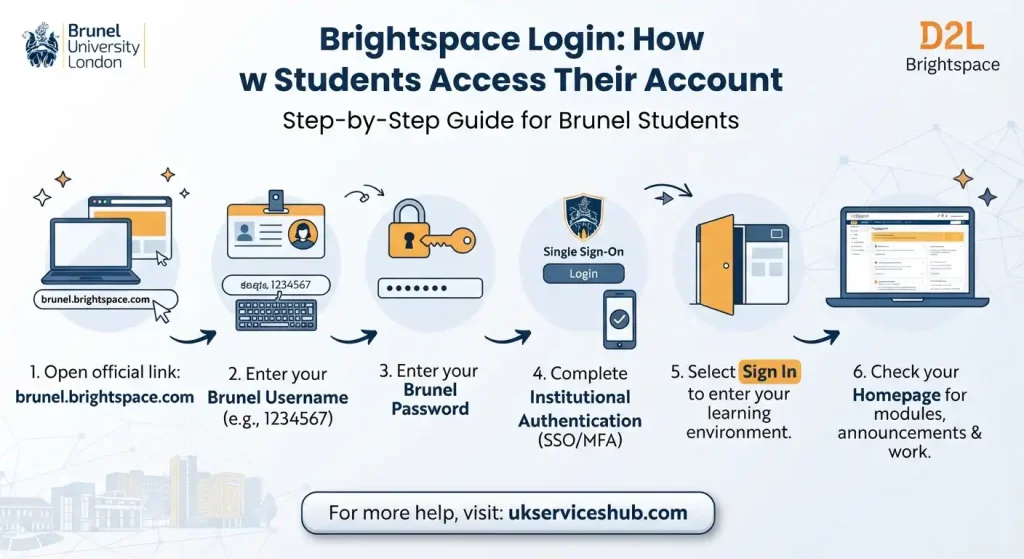
The phrase bright login can refer to different sign-in experiences because institutions may use local Bright credentials, single sign-on (SSO), Microsoft/Google authentication or another institutional identity system. D2L confirms that the organisation determines the login page and authentication method.
Login steps
If you are using Brunel Brightspace, Brunel’s official guidance states that students log in using their university credentials.
What to Do After Your First Brightspace Login
Getting through the bright login in process is only the first step. Once your account opens, spend a few minutes becoming familiar with the homepage rather than immediately searching for individual files.
The layout can differ according to your institution, but common areas include your course list, navigation bar, alerts, messages and personal account options.
A good first check is whether the modules you expect to study are visible. D2L explains that students can use the Course Selector to see classes to which they have been given access.
Your first-login checklist
Tip: Don’t worry if your dashboard looks different from a friend’s account. Brightspace environments are customised by individual organisations, so available tools and navigation can vary.
Finding Your Courses
After signing in, the next priority is course access. Your courses may appear directly on the homepage through a My Courses area, or you may need to use a Course Selector or another navigation option provided by your institution.
If a course is missing, don’t immediately assume that your account is broken. Course visibility can depend on enrolment, release dates and institutional settings. D2L notes that course availability is managed by the organisation or instructor.
For a Brunel student, the university states that enrolled modules should appear on the Bright home page. If an expected module is missing, Brunel advises students to contact the appropriate university support service.
Course Access, Navigation and Everyday Use
Once your modules appear on the homepage, the next step is learning where the important material lives. The exact arrangement depends on your institution, but the core learning areas are broadly familiar across environments.
For Brunel students, the university says Bright provides access to module resources such as documents, links, videos, announcements, discussion boards and reading lists.
How to Open a Course or Module
Finding a module usually takes only a few clicks. Your institution may display courses as cards on the homepage or make them available through a course selector.
Try this process:
If you are a Brunel student, the university states that your enrolled modules should appear on the home page after you have completed enrolment and the required network-account setup.
If a module you expect to see is missing, check your enrolment status first. A missing course does not necessarily mean that your brightspace login has failed.
Understanding the Course Content Area
The Content section is usually one of the most important parts of a course. It organises teaching resources into modules, units or topics so that students can work through the material in the order selected by their institution or instructor.
Depending on the course, you may find:
D2L explains that assignments, discussions and quizzes can be configured to appear within Content, allowing learners to access some assessed activities without repeatedly moving between separate tools.
A Better Way to Work Through Course Material
Instead of opening random files from the homepage, use the course structure as your study plan.
Start with the current module or weekly section, read the instructions first, then work through its resources in sequence. Before moving on, check whether there is an associated assignment, quiz, discussion or completion requirement.
This approach can make the platform much easier to manage, particularly when a course contains a large number of files.
Assignments and Coursework
Your course may use Brightspace to provide assignment instructions and collect coursework, although individual institutions can also connect other submission systems to their learning environment.
When an assignment is available through the platform, carefully check:
Do not leave an upload until the final few minutes. A weak internet connection, an unsuitable file format or a browser problem can turn a routine submission into a stressful one.
After submitting work, look for confirmation that the system has accepted it. Keep your own copy of the submitted file as well.
Discussions and Group Learning
The Discussions tool provides a space for learners to communicate about course topics, assignments and other academic activities. D2L explains that discussions can be organised into forums and topics, with participation requirements and availability dates controlled by the course setup.
A discussion might ask you to:
Always read the instructions before posting. Some discussions require an original response followed by replies to classmates, while others may have specific deadlines or assessment criteria.
Checking Grades and Feedback
The Grades area can help you monitor your academic performance. D2L’s student guidance states that learners can use Grades to view results for assignments and quizzes, with comments and feedback available where the instructor has provided them.
To check your results:
Not every grade will necessarily appear immediately. An instructor or institution controls when assessment results are released.
If you are waiting for a result that you expected to see, check your course announcements first. If there is still no update, contact the instructor or appropriate university support team.
Keeping Track of Your Progress
Some Brightspace environments provide a Class Progress area that brings together information about course activity. Depending on institutional configuration, students may be able to review areas such as content, assignments, quizzes, discussions and grades.
This can be useful when several modules are running at once.
A sensible weekly routine is to check:
| Area | What to Look For |
|---|---|
| Content | New lectures, readings and learning activities |
| Assignments | Upcoming submission dates |
| Quizzes | Available tests and attempt requirements |
| Discussions | New topics and response deadlines |
| Grades | Recently released marks and feedback |
| Announcements | Changes or important course information |
| Calendar | Upcoming academic activities |
The available options will depend on how your university has configured its environment.
Brightspace Notifications and Course Updates
Notifications can prevent important announcements from being overlooked. Your institution may configure alerts for course updates, grades, assignments or other activities.
Rather than relying entirely on notifications, make checking your course homepage part of your normal study routine.
For example, you could review your modules at the beginning of each study session and then check announcements before starting an assignment. This reduces the chance of missing a newly published instruction.
Using Brightspace at Brunel
Students searching for brunel bright should follow Brunel University’s own access instructions.
Brunel confirms that its VLE is powered by Brightspace and that staff and students access it through the university’s sign-in system. The university also states that students receive personalised modules based on information from the student record system.
Brunel’s student information also confirms that students need to be fully enrolled and complete the required network-account task in eVision before gaining access.
For students who are already enrolled, the official Brunel route is:
What Brunel Students Can Expect
Once access is active, Brunel students can use the VLE to find their modules and learning resources. Brunel specifically lists teaching resources, announcements, discussion boards and reading lists among the materials available through its environment.
Some services may remain separate from Bright. For example, Brunel’s information explains that students may use other university systems for particular activities, so you should follow the instructions attached to each module rather than assuming every task happens inside one platform.
Common Navigation Problems
A platform can be working normally even when a particular course element is unavailable. Access may be affected by enrolment, availability dates, permissions or the way an instructor has configured the course.
For example, D2L notes that availability settings can determine whether students can access discussion topics during particular periods.
If something seems to be missing, ask:
Is the course available yet?
The instructor or institution may not have released it.
Am I enrolled on the correct module?
Check your official student record.
Is the activity restricted by a date?
Some resources become accessible only during a defined period.
Does my role have access to the tool?
Not every course uses every Bright feature.
Is this activity handled by another university system?
Some institutions connect Bright with external platforms.
These checks can save time before contacting support.
Practical Tips for Students
A few simple habits can make your online learning experience much smoother:
Expert tip: Don’t search for a generic Bright login every time you need access. Your institution’s official entry point is usually the most reliable route because authentication and account management are organisation-specific.
Troubleshooting, Account Help
Getting into your learning environment is usually straightforward, but problems can happen with passwords, course visibility, browsers or institutional accounts. The best solution depends on where the problem occurs.
Remember that D2L provides the Bright software, while your university or school normally controls student accounts, enrolment and access permissions.
Brightspace Login Problems and Solutions
If your login is not working, first identify whether the issue concerns your password, account, authentication method or the platform itself.
1. Username or Password Not Accepted
If you receive an invalid-credentials message:
Do not repeatedly guess passwords. Too many unsuccessful attempts can sometimes trigger additional account security measures.
2. You Don’t Know the Correct Login Page
There is no single student login address that works for every Bright institution. D2L recommends using its organisation-specific Login Finder when you do not know where your institution’s environment is located.
This is particularly important when searching for brightspace login in Google. A search result may point to a different university’s platform, even though it uses the same Bright technology.
Best practice: start with your university’s official website, student portal or IT support page.
What If Your Course Is Missing?
A missing course is one of the most common issues students encounter after signing in.
Before reporting the problem, check:
D2L explains that course availability is controlled by the organisation and instructors, so students may not automatically see every course in the system.
Brunel Brightspace Course Access
For students using brunel brights, Brunel explains that modules are personalised using information from the university’s student record system. The university also notes that students need to complete registration and the relevant network-account requirements before gaining access.
If you have completed those requirements but an expected module is still absent, contacting Brunel support is more useful than repeatedly attempting the login.
Brightspace Keeps Loading or Shows an Error
A page that continually loads may be caused by a browser problem, an outdated browser, cached information or a temporary connection issue.
Try the following:
If the same error appears across different browsers and devices, the problem may be associated with the institutional service rather than your computer.
Assignment Upload Failed
An unsuccessful assignment submission can be particularly worrying when a deadline is close.
Start by checking the instructions for the assignment. Your instructor may specify particular file formats, submission methods or restrictions.
Then:
If the system fails during a time-sensitive submission, take a screenshot of the error and contact your institution or instructor promptly. Keep the original assignment file available as evidence of what you attempted to submit.
Notifications Are Not Appearing
If you are not receiving expected notifications, first check whether notifications are enabled in your account and whether your institution has configured the relevant alert types.
Also check your email’s:
Remember that notifications are a convenience rather than a replacement for checking your course. Important information can still be available directly inside your module.
Mobile Access
Brightspace can also be used through mobile solutions where the institution supports them. However, the exact mobile experience depends on your organisation’s configuration and the services it makes available.
If you use a mobile device, make sure you are accessing the legitimate application or institutional website rather than entering your university credentials into an unfamiliar third-party service.
For important assignments and examinations, a desktop or laptop may be preferable if your course has specific technical requirements.
Account Security Tips
Your institutional account may provide access to academic records, coursework and other university services, so treat your credentials carefully.
Protect your account by:
Important: legitimate university support staff should not normally need you to disclose your password.
Brightspace vs Your University Portal
One reason students become confused is that several online systems may be involved in their studies.
| System | Typical Role |
|---|---|
| University portal | Student records, registration and administrative services |
| Brightspace | Teaching, course materials and online learning activities |
| Email account | University communications |
| Library system | Books, journals and academic resources |
| Authentication service | Account sign-in and security |
| Specialist platforms | Course-specific software or activities |
The exact arrangement differs between institutions.
For Brunel students, for example, Brightspace forms part of the university’s wider digital learning environment rather than replacing every other university system. Brunel’s guidance describes as its VLE and identifies other digital services used alongside it.
Quick Brightspace Student Checklist
Before contacting support, run through this short checklist:
Account
Access
Courses
Technical
Coursework
This checklist can help separate an account problem from a course-availability or browser issue.
Frequently Asked Questions
Conclusion
Brightspace provides students with a central place to access courses, learning materials, assignments, quizzes, discussions and grades. While the platform itself is widely used, the login process and available features can vary between schools, colleges and universities.
If you are having trouble with Bright login, start by using your institution’s official access page and checking your username, password and authentication details. If you can sign in but cannot find a course, the issue may be related to enrolment, course availability or institutional settings rather than your account.
For technical problems, simple steps such as refreshing the page, updating your browser, trying a private window or checking another device can often help. If the problem continues, contacting your university or school’s IT support team is the safest way to resolve account and access issues.
With the right login details and your institution’s official guidance, accessing Bright and keeping up with your online learning can be much easier.