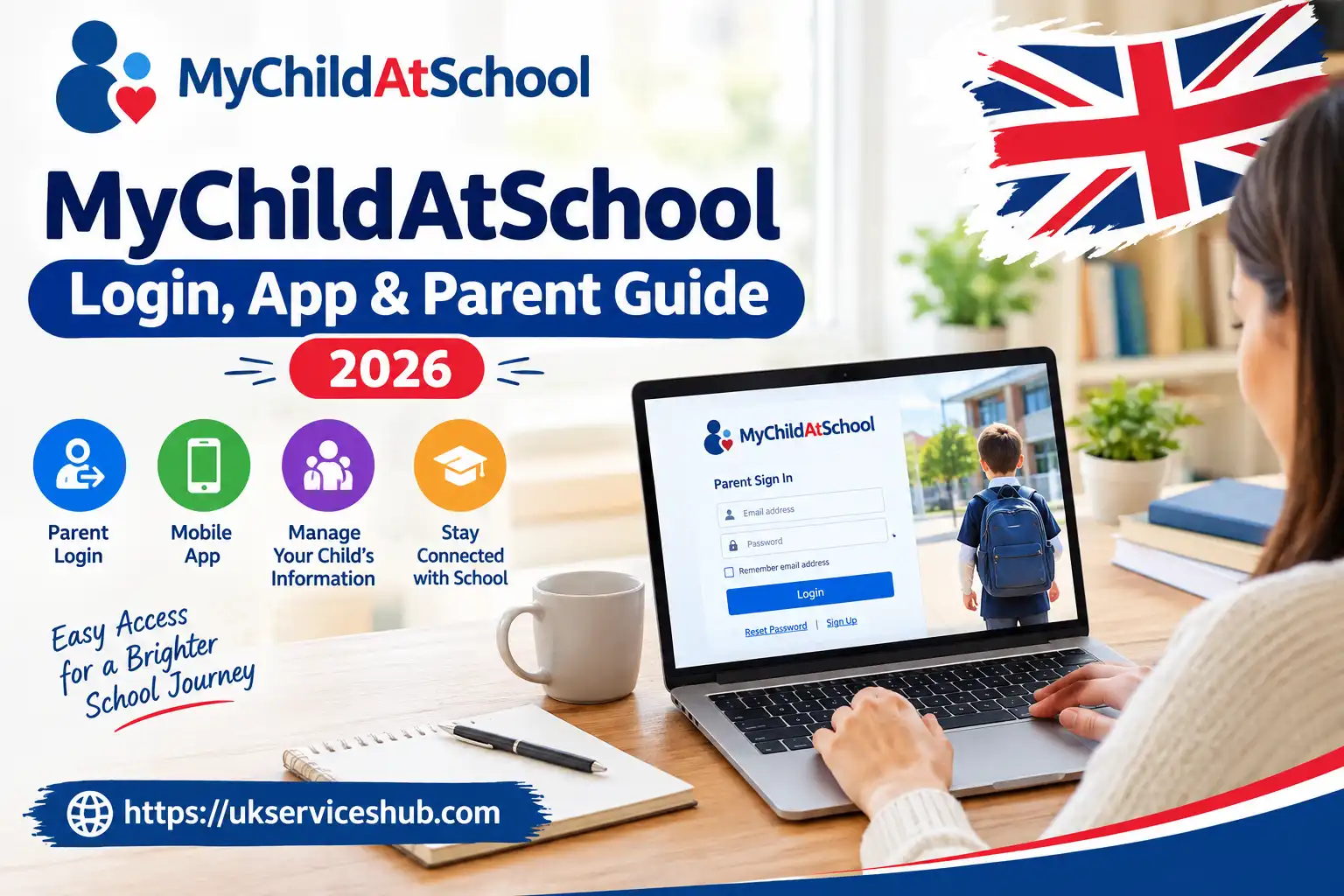
MyChildAtSchool Login, App & Parent Guide 2026
Parents and carers often need access to school information without having to contact the school every time they want to check an update. MyChildAtSchool (MCAS) provides an online route for viewing information that a school has chosen to make available to parents and carers.
Depending on the school’s setup, your account may provide access to attendance records, timetables, announcements, reports, documents and other student information. The exact options can differ between schools, so two parents may not see identical dashboards.
This guide explains how to access a parent account, register for the service, recover a forgotten password, use the mobile app and deal with common sign-in problems.
MyChildAtSchool Login: How Parents Sign In

The standard parent login requires the email address connected to your school account and your current password. If you already have an account, the process is straightforward.
Follow these login steps

The official sign-in screen includes Email and Password fields. It also provides options such as Remember Email Address, Reset Password and Sign Up, where applicable.
What should you have ready?
| Requirement | What it means |
|---|---|
| Registered email | Use the address associated with your parent account |
| Password | Enter your current password accurately |
| School access | Your school must have enabled or provided access |
| Internet connection | Needed for the online portal and mobile service |
Important: If your school has not registered the correct email address or has not enabled your access, repeatedly trying different passwords is unlikely to fix the problem. Contacting the school office is normally the better option because it can confirm the account information held on its records.
What Can You See After Signing In?
Your dashboard depends largely on what your child’s school has configured. The service brings different types of school information together, allowing parents to check available records from one account.
Depending on the school’s configuration, you may see:
The important point is that the dashboard is not necessarily identical for every school. If another parent has an option that you cannot see, that does not automatically mean something is wrong with your account.
Setting Up a New Parent Account
If you have never used the service before, your school may need to complete or initiate the registration process before you can access your account.
The official registration process can ask for a school postcode or School ID before you continue. If your school has provided an invitation, keep those details available while registering.
An invitation-code process may request information such as:
Registration tip
Use the same email address that your school has on its records. If the registration system does not recognise your information, avoid creating several accounts with different email addresses. Instead, ask the school to confirm the details associated with your parent access.
This can save time and prevent confusion later when you try to sign in.
Forgot Your Password? Here’s What to Do
A forgotten password does not usually mean you need to create another account. The official login page provides a Reset Password option for users who cannot remember their current password.
Password recovery process
If no reset email arrives, check that you entered the correct email address. When the address is correct but recovery still fails, the school may need to check whether your account details are accurate or up to date.
Security reminder: Never give your password or password-reset message to another person. When accessing your account, use the official website rather than unfamiliar links.
MyChildAtSchool App: Using MCAS on Your Phone
The MyChildAtSchool app gives parents another way to access the service from a smartphone. It can be useful for checking school information while away from a computer.
Your available features still depend on your school’s configuration and the account connected to your child.
Getting started with the app
If the app does not work correctly, try signing in through the official website. This is a useful troubleshooting step because it helps establish whether the problem is connected to your account or specifically to the mobile application.
Website or mobile app?
| Web portal | Mobile app |
|---|---|
| Works through a browser | Requires an app installation |
| Suitable for computers, tablets and mobile browsers | Designed for smartphone use |
| Convenient for browsing on a larger screen | Handy for checking updates while away from home |
| Accessed through the official website | Accessed through the installed application |
Both options ultimately rely on the same basic requirement: your school account needs to be correctly configured.
MyChildAtSchool Login Not Working? Try These Checks
A failed sign-in does not necessarily mean your account has been blocked. The problem could be caused by an incorrect email address, an old password, browser data, an internet connection or information held by the school.
Before contacting the school, work through these checks:
When troubleshooting, change one thing at a time where possible. That makes it easier to identify what actually resolved the problem.
Common MyChildAtSchool Problems and Solutions
Different symptoms can point towards different causes. Reinstalling the app or creating another account should not be your first response to every problem.
| Problem | First thing to try |
|---|---|
| Incorrect login details | Recheck your email and password |
| Forgotten password | Use the official password-reset function |
| Missing registration email | Check spam or junk folders |
| Account not recognised | Ask the school to verify your registered details |
| Website displaying incorrectly | Try another browser or private browsing |
| App behaving unexpectedly | Update the app and restart your device |
| Student information appears incorrect | Contact the school responsible for the record |
“Invalid credentials” or unsuccessful sign-in
If your MyChildAtSchool student login or parent access is rejected, first check the email address you are entering.
A password can be completely correct and still fail if the email address is not connected to the account. This is particularly worth checking if you have recently changed your email address.
If your email has changed, the school may need to update its records before the new address can be used.
No invitation or registration email
Not receiving an invitation does not automatically mean there is a technical fault.
The school may have an outdated email address on record, or your registration may not yet have been completed. Check your junk folder first. If nothing is there, contact the school office and ask it to confirm the email address and access arrangements associated with your account.
The mobile app is not working
If the application opens but behaves unexpectedly, try the following:
Testing the website is especially useful. If the web portal also rejects your credentials, the issue is more likely to involve the account rather than the app itself.
How to Access MyChildAtSchool Safely
There are two main routes for accessing the service: the official website and the recognised mobile application.
Access through the website
The browser version can be particularly convenient when using a desktop or laptop because the larger screen makes it easier to review school information.
Use the official portal:
Before entering your password, check the website address carefully. Avoid signing in through websites that imitate the service or through unfamiliar links sent by unknown sources.
Access through the mobile app
The app may be more convenient if you regularly check school updates from your phone. Install it through your device’s recognised app marketplace and use the parent credentials associated with your account.
If more than one child is connected to your account, the information available to you will depend on how the relevant school has configured the account.
When Should You Contact the School?
Some account problems cannot be resolved from the login page because the school controls important information connected to your access.
Contact the school if:
In these situations, contacting the school is often more productive than repeatedly trying different passwords or registering additional accounts.
MyChildAtSchool Quick Reference
| If you need to… | Best starting point |
|---|---|
| Sign in | Official MCAS website |
| Recover a password | Reset Password on the login screen |
| Register for the first time | School registration or invitation details |
| Check school information | Your parent dashboard |
| Use your phone | Official MCAS mobile application |
| Resolve incorrect student details | Contact the school |
| Fix an account-related access problem | Ask the school to verify your records |
| Test whether an app problem is account-related | Try the web portal |
The key is to identify whether the issue is with your credentials, device, application or school account information. That makes troubleshooting much more efficient.
Frequently Asked Questions
Conclusion
MyChildAtSchool makes it easier for parents and carers to stay connected with their child’s school information in one place. From MyChildAtSchool login and account setup to checking attendance, timetables, school messages, reports, and other updates, the platform can provide convenient access through both a web browser and mobile app.
If you have trouble accessing your account, start by checking your registered email and password, then use the password reset option if needed. App problems can often be resolved by updating the app, restarting your device, or trying the official website. For missing children, incorrect details, registration problems, or access issues that cannot be resolved, contacting your child’s school is usually the best next step.
Using the official platform and keeping your login details secure can help you manage school information safely and conveniently throughout the school year.
Read more..