Showbie: Login, Classes, Assignments & Student Guide 2026
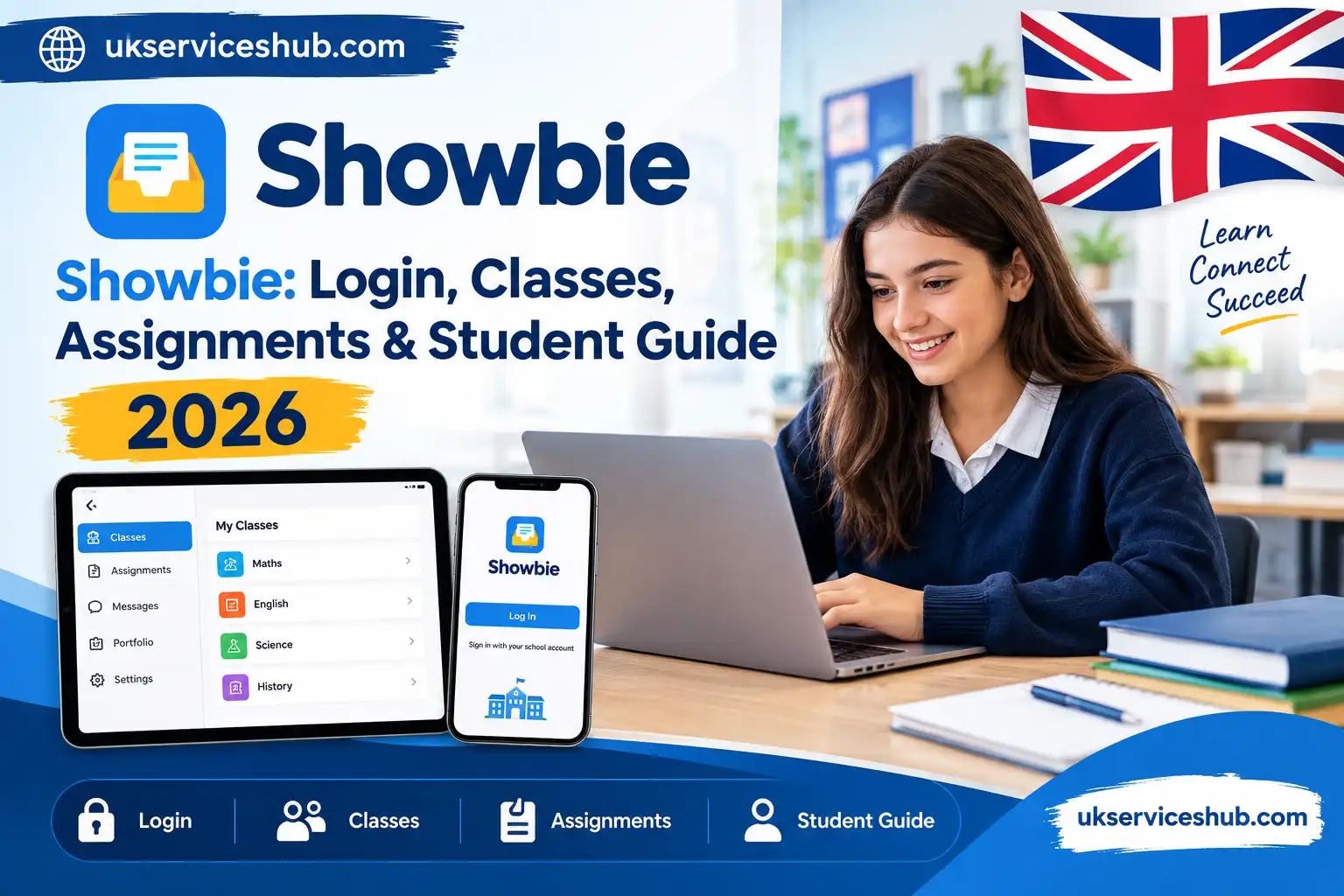
Showbie is a digital learning platform that helps teachers manage classes, share assignments, collect student work, and provide feedback online. Whether you are a student trying to access your class, a teacher organising coursework, or a parent looking to understand how the platform works, Showbie brings these classroom tasks together in one place.
In this guide, you’ll learn how to use Showbie in 2026, including the Showbie login process, joining classes, accessing assignments, submitting work, and using key features available to students and teachers. The guide also covers common account and sign-in issues to help you get started more easily.
Showbie is designed to support paperless classroom workflows and can be accessed across different devices, making it useful for schools that want a simple way to organise digital learning and communication.
What Is Showbie?
Showbie is an education platform built around digital classroom and assignment management. A teacher can create a class, add learning materials and set tasks for students. Learners then open the relevant assignment, complete their work and submit it for review.
One of its main strengths is keeping the assignment and feedback together. Rather than receiving a separate written note or having to find comments elsewhere, students can see annotations, written comments, grades or other feedback alongside their submitted work.
The system can also support different types of submissions. Depending on the task, students may upload documents, images, audio recordings, videos or work created in another application.
Who Can Use It?
The platform can be useful for:
Schools can organise access according to their own setup, so the exact account process may differ between institutions.
Showbie Login: How to Access Your Account
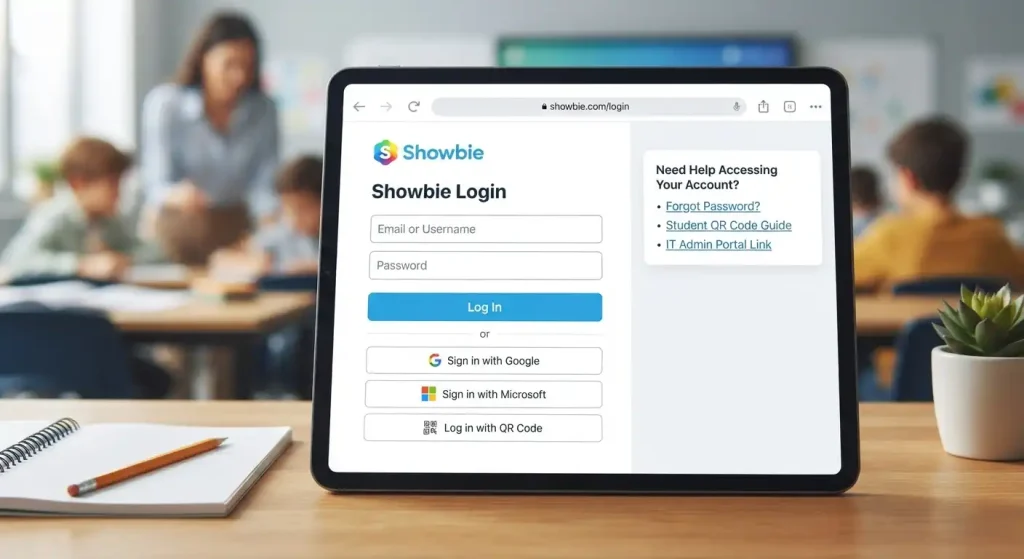
If your school has already provided an account, you can normally access the service through the web version or the mobile/tablet application. The official support documentation states that students can use the web app at my.showbie.com, while iOS and iPadOS users can use the dedicated app.
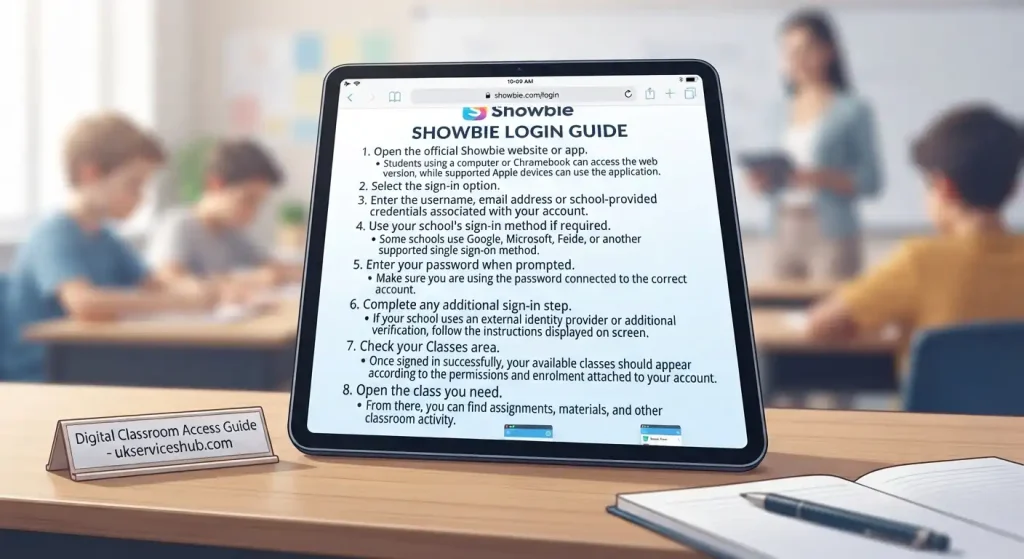
Login Steps
What If You Cannot Sign In?
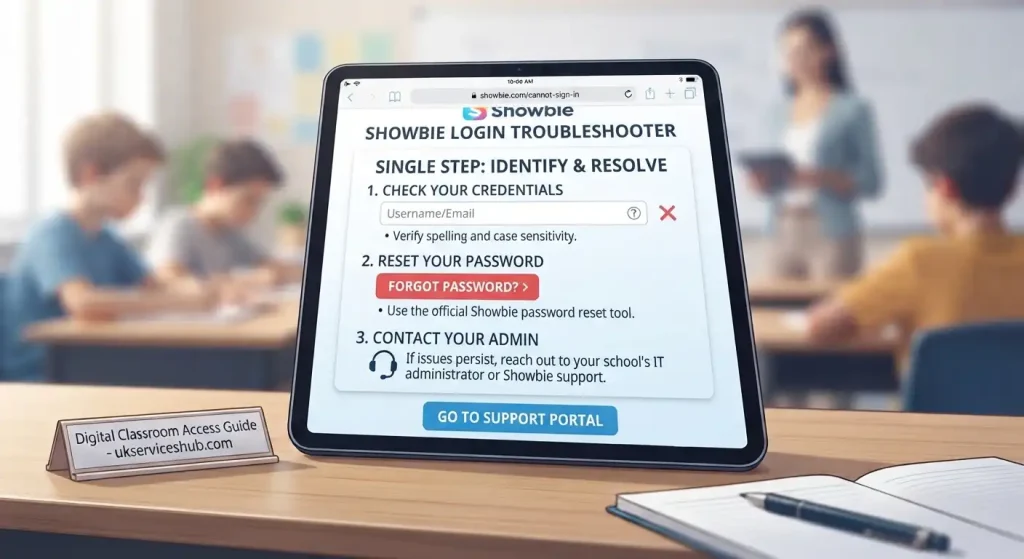
A failed sign-in does not necessarily mean that your account has been deleted. First check that you are using the correct username or email address and that there are no typing errors in your password.
If you have forgotten your password, the official support guidance provides a password-reset option from the login screen. Administrators can also help manage student accounts and reset passwords where appropriate.
If your school uses Google or Microsoft sign-in, make sure you are selecting the account provided by your school rather than a personal account.
Joining a Class With a Class Code
Logging into your account and joining a particular class are separate steps. If your teacher has given you a class code, you may need to enter it before the class becomes available.
The current joining process is:
Teachers can control how students enter their classes. By default, class joining can require teacher approval, meaning a student may see a waiting message before gaining access to the class content.
Security tip: Do not post a class code publicly. Share it only with the students who are supposed to join the class.
Understanding the Student Dashboard
After you have joined your classes, the dashboard becomes the main starting point for schoolwork.
Depending on your school’s setup, you may see:
The organisation is particularly useful when several subjects use the same account. Instead of searching through emails or paper handouts, students can return to the relevant class and locate their current work.
How Students Access Assignments
Open the class where the task has been posted and select the appropriate assignment. Teachers can attach instructions, files, links and other resources to an assignment.
An assignment may also have specific access settings. For example, the teacher can make it hidden, locked, view-only or editable depending on how students should interact with the activity.
Submitting Assignments
Digital submission is one of the central parts of the platform. Students can respond to tasks and upload work rather than handing in a physical worksheet.
Depending on the assignment, submissions can include:
This flexibility means a teacher can use the same classroom space for written homework, creative projects, recorded explanations and other activities.
Before submitting, check the teacher’s instructions carefully. Make sure the correct file has been attached and that you have completed all required parts of the task.
Teacher Features and Classroom Management
For teachers, the platform is more than a place to collect homework. It combines class organisation, assignment distribution, student submissions and feedback.
A typical workflow can look like this:
Create class → Add assignment → Share resources → Students complete work → Review submissions → Provide feedback → Monitor progress
Teachers can create assignments with titles, descriptions and due dates. They can also choose grading formats and decide how students should access the activity.
Creating an Assignment
A teacher can open a class, select the + menu and choose the assignment option. The activity can then be given a name and description, with additional settings such as the due date, grading method and student access.
After creation, the assignment provides a dedicated area for resources, student submissions and communication. Teachers can also manage assignments later by copying, moving, archiving or reordering them.
Feedback, Marking and Assessment
One of the most useful features for educators is the ability to provide feedback directly on student work.
Teachers can use tools such as:
This approach keeps feedback connected to the work being discussed. A teacher can point to a specific section of an assignment instead of giving a general comment that students must interpret separately.
The platform also supports gradebook and assessment workflows. Teachers can use assignment settings to determine whether an activity contributes to the class gradebook and can export grades when needed.
Showbie App and Device Support
The showbie app is useful for students and teachers who prefer working from a tablet or mobile device. Official support information confirms that the service can also be accessed through a browser, making it suitable for computers and Chromebooks.
The source material also identifies support across iPads, Chromebooks, Windows and Macs.
The best option depends on the device supplied by your school and how your classes are organised. A student working mainly on a school iPad may prefer the app, while someone using a Chromebook can work through the browser.
Student Portfolios
Students can have a personal portfolio containing selected examples of their work. These portfolios can be useful for showing progress, reflecting on completed activities and highlighting achievements.
Teachers can also manage portfolio content, while parent access may be available depending on the school’s settings. The official support documentation describes portfolios as a way to showcase selected work from different classes and assignments.
Account Help and Password Problems
If your account is not working properly, start with the simplest checks:
Incorrect password:
Use the password-reset option if you cannot remember your credentials.
Wrong school account:
If your school uses Google or Microsoft SSO, check that you have selected the account associated with your school.
Missing class:
A successful sign-in does not automatically mean you are enrolled in every class. Ask your teacher or school administrator to confirm your class membership.
Class code problem:
Check that the code has been entered correctly. If the request remains pending, your teacher may need to approve it.
Student account issue:
If your school manages accounts centrally, an administrator may be able to check your account details, class memberships or password status.
Showbie Sign In: Common Issues to Check
When a showbie sign in does not work, avoid repeatedly entering different passwords without checking the account first.
Try these checks:
If the problem continues, use the official support resources rather than relying on unofficial login pages.
Managing Assignments More Efficiently
Teachers working with several classes can quickly accumulate large numbers of activities. Good organisation therefore matters.
Completed assignments can be archived rather than permanently removed, allowing teachers to restore them later if necessary. Assignments can also be copied when the same activity is needed for another class or new term.
A practical classroom routine is to keep current activities visible, move older work into organised folders and archive assignments that are no longer active.
This reduces clutter and makes it easier for both teachers and students to find what they need.
Free and Paid Options
The source material describes free and paid options, with the free version covering core classroom functions and paid plans adding broader capabilities.
Because education software pricing and plan features can change, schools should check the current official pricing information before making a purchasing decision.
For an individual teacher, the basic tools may be enough for straightforward digital assignments. Schools with larger numbers of teachers, classes or administrative requirements may need additional features or a school-level arrangement.
Privacy and School Data
Educational platforms can involve student names, submitted work, grades and other information, so schools should consider their own data protection responsibilities before introducing any digital classroom system.
The source material highlights the importance of checking privacy arrangements, data governance, access controls and staff awareness when implementing the platform.
Students should also avoid sharing account credentials or class codes with people who are not part of their class.
Showbie vs Other Classroom Platforms
Schools sometimes compare Showbie with tools such as Google Classroom and Seesaw. The right choice depends on how a school manages assignments, feedback, portfolios, communication and existing technology.
The source comparison identifies:
| Area | Showbie | Google Classroom | Seesaw |
|---|---|---|---|
| Main strength | Assignment feedback and annotation | Google Workspace integration | Portfolios and younger learners |
| Assignment workflow | Strong | Strong | Strong |
| Annotation | Extensive | More limited in comparison | Available |
| Voice feedback | Available on supported plans | May require additional tools | Available |
| Parent access | Available | Guardian features | Strong parent-oriented tools |
| Device support | Multi-device | Strong Chromebook/Google environment | Cross-platform |
These differences do not make one platform universally suitable. Schools should consider the devices they already use, staff familiarity, student age groups and the type of feedback teachers need to provide.
Frequently Asked Questions
Conclusion
Showbie provides a practical way for teachers and students to manage digital classroom activities, assignments, submissions and feedback in one place. From accessing a class and completing assignments to reviewing teacher comments, the platform helps organise everyday learning without relying heavily on paper-based tasks.
For students, understanding the Showbie login process, class access, assignment submission and dashboard features can make the platform easier to use. Teachers can also use its classroom tools to distribute work, collect responses and provide feedback to learners. Showbie supports access across several devices, making it suitable for different classroom and home-learning environments.
Whether you are a new student trying to access your class or a teacher setting up digital assignments, knowing the basic Showbie features can help you get started confidently. This Showbie guide covers the key areas you need to understand, including login, classes, assignments, student tools and account support.
As Showbie continues to support digital classroom workflows, learning how its main features work can help students stay organised and help teachers manage assignments and feedback more efficiently.
Read more..