EdShed Login Guide: Spelling Games, Student Access and Teacher Tools

EdShed gives pupils, parents and teachers access to online learning activities designed to support spelling, phonics, literacy and other classroom skills. However, finding the correct login page, opening assigned homework or resolving a school account problem can sometimes be confusing, especially for first-time users.
Whether you want to play Spelling Shed at home, help your child complete a homework task or organise classroom assignments, knowing which part of the platform to use can save time.
This guide explains how to access EdShed, sign in with school credentials, start spelling games, find learning activities and use the available teacher features. It also covers common login problems and answers frequently asked questions about student accounts.Visit our homepage for more information.Click Here.
EdShed Login: Which Website Should You Use?
The first step is choosing the correct EdShed website. The main platform provides access to account services and educational resources, while the dedicated play website is intended for pupils accessing interactive learning activities.
Use these official links to get started:
| Purpose | Official website |
|---|---|
| EdShed main website | https://www.edshed.com/ |
| EdShed login | https://www.edshed.com/en-gb/Login |
| Student games and activities | https://play.edshed.com/en-gb |
| Customer support and help articles | https://support.edshed.com/ |
Which page is best for you?
Before entering your password, check the website address carefully. Using the official platform helps you avoid confusing EdShed with unrelated websites.
How to Sign In to Your EdShed Account
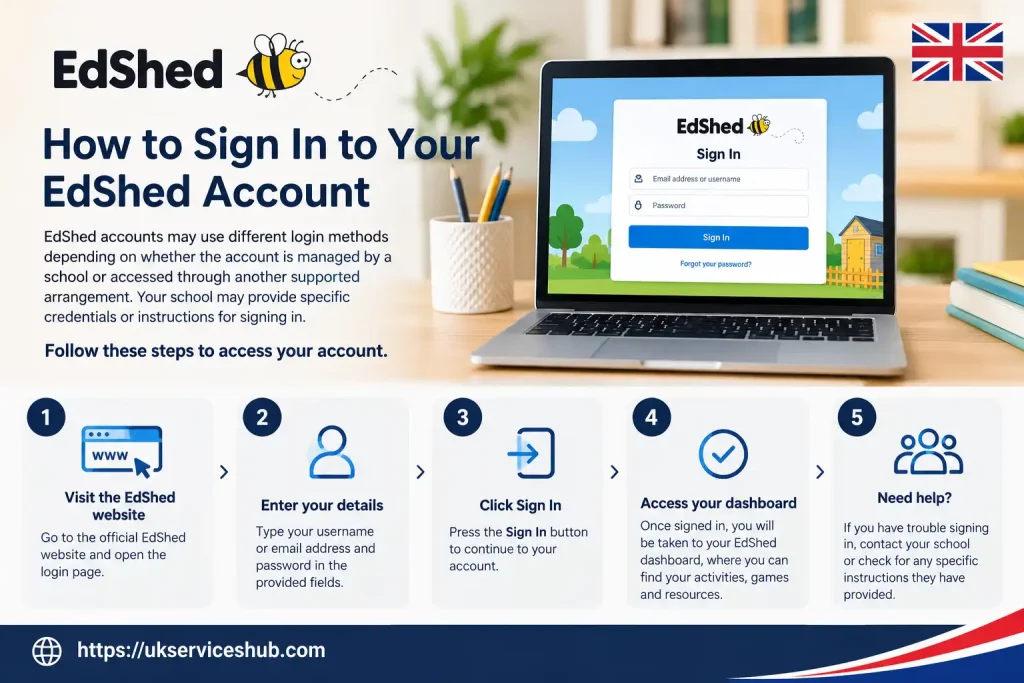
EdShed accounts may use different login methods depending on whether the account is managed by a school or accessed through another supported arrangement. Your school may provide specific credentials or instructions for signing in.
Follow these steps to access your account.
Step 1: Open the login page

Visit the official EdShed login page. Choose this page when you need to authenticate your account rather than simply browse the available information.
Step 2: Select the correct login option
The sign-in page may offer a global username or email option and a school username option. Select the method that matches the details provided by your teacher or account administrator.
If your school uses a supported single sign-on service, you may also see options such as Wonde, School Passport or OneClick. Follow your school’s instructions instead of trying different methods at random.
Step 3: Enter your login details
Type your username or email address and password into the appropriate fields. Check for accidental spaces, spelling mistakes and incorrect capitalisation if the platform rejects your credentials.
For younger pupils, it can help to keep school-provided login instructions somewhere safe and accessible to a parent or authorised carer.
Step 4: Select Sign In
Submit your details and wait for the account to open. Depending on your permissions, you may be taken to a dashboard, a learning product or an area containing assigned activities.
Step 5: Find your learning activity
Once signed in, open the relevant subject or product. If your teacher has assigned spelling homework, look for the designated task rather than starting an unrelated game.
Important: Having a username does not necessarily mean every learning product is available. School-managed accounts may need the correct profile setup, group membership and product licence before particular activities can be accessed.
What to Do When EdShed Login Is Not Working
A failed login does not always mean that your account is incorrect. The problem could involve the login method, school account settings, a missing licence or a temporary technical issue.
Use the following checks to identify the likely cause.
| Problem | What to try |
|---|---|
| Password is rejected | Check the spelling and use the forgotten-password option if available. |
| Username is not recognised | Confirm whether you need a school username, global username or email address. |
| New pupil cannot sign in | Ask the teacher or school administrator to verify the account setup. |
| Learning activity is missing | Check that you are using the correct account and learning product. |
| Access is denied | Ask the school to check your permissions, group membership and product licence. |
| Website does not load properly | Refresh the page, check your internet connection or try an updated browser. |
| Problem continues | Contact EdShed support at [email protected]. |
Forgotten your EdShed password?
Return to the official login page and look for a password recovery option. Follow the instructions shown there if the option is available for your account.
If the account is managed by a school, your teacher or administrator may need to help you recover access. Do not create a second account before checking whether your original profile can be restored.
Why can a pupil sign in but not access a game?
Successful authentication only confirms that you have entered an account. Access to a particular product may depend on the school’s setup, the licence assigned to the pupil and the permissions associated with the account.
Ask the teacher to confirm that the correct learning product is available and that any assigned work has been allocated to the right pupil or class.
For further assistance, visit the official EdShed support centre.
How to Play EdShed Games and Complete Spelling Practice
The EdShed play portal is a useful starting point for pupils who want to practise spelling and access available learning activities. The exact options depend on the products and permissions associated with their accounts.
To begin a practice session:
Some activities may be accessible without signing in. However, an account may be necessary when a pupil needs their activity associated with a school profile or wants their progress recorded against assigned work.
How can parents help children use EdShed at home?
Parents can make home practice more useful by helping children focus on the work selected by their teacher. A pupil who spends the entire session playing unrelated activities may miss the intended learning objective.
Try this routine:
Short, focused practice sessions can make homework easier to manage. The aim is to build confidence and understanding, not simply to finish as quickly as possible.
Spelling Shed and Phonics Shed: What Can Pupils Learn?
EdShed brings together learning products and resources intended to support different educational needs. The tools available to an individual pupil depend on the account, school arrangements and relevant product access.
Spelling Shed
Spelling Shed focuses on spelling practice through word lists and interactive activities. Teachers can use spelling resources to reinforce particular patterns, while pupils practise the words selected for their learning needs.
For example, a teacher may assign a list containing words with a shared spelling pattern. Pupils can practise those words and revisit difficult examples to improve their accuracy.
Official guidance is available through the Spelling Shed knowledge base.
Phonics Shed
Phonics Shed supports early reading and phonics learning through structured educational resources. These materials can help teachers introduce sound patterns and support pupils who are developing their early literacy skills.
Parents should follow the activities recommended by the child’s teacher so that home practice complements classroom learning.
Visit the Phonics Shed support section for product-specific guidance.
Other available learning resources
Depending on the products offered by a school, learners may also have access to resources supporting grammar, punctuation, vocabulary or mathematics.
| Learning area | How it can help |
|---|---|
| Spelling | Practise assigned words and recognise spelling patterns. |
| Phonics | Develop awareness of sounds and support early reading. |
| Grammar and punctuation | Reinforce sentence construction and writing conventions. |
| Vocabulary | Build understanding of word meanings and usage. |
| Mathematics | Practise relevant mathematical skills through available resources. |
Not every account includes every product. If a resource does not appear after you sign in, ask your school to confirm whether it is available to you.
Making the Most of EdShed Spelling Games
Interactive spelling games provide an alternative to practising every word on paper. Depending on the activity, a pupil may hear a word, view spelling prompts or enter an answer to demonstrate their understanding.
The most useful approach is to treat the game as a learning exercise rather than a race.
Focus on accuracy before speed
Children can become distracted by scores or the desire to finish quickly. Encourage them to read each prompt carefully and think about the spelling pattern before submitting an answer.
When a word is incorrect, take a moment to identify the difficult part. Repeating the word thoughtfully is more useful than guessing repeatedly.
Practise difficult words again
Some words are harder to remember than others. Make a note of recurring mistakes and revisit those words after the activity, where appropriate.
A parent might ask the child to say the word aloud, spell it slowly or use it in a sentence. This creates another opportunity to connect the spelling with its meaning.
Choose suitable activities
A pupil who is still learning a spelling pattern may benefit from more supported practice. A confident learner may be ready for a more challenging activity, if the available options and teacher’s instructions allow it.
Teachers and parents should prioritise suitable learning goals over high scores alone.
Understand the role of the Shed Score
The Shed Score is described in the supplied Spelling Shed guidance as a rolling measure based on recent activity over seven days. As the activity within that period changes, the score can rise or fall.
It should therefore be viewed as an indication of recent participation and performance rather than a permanent judgement of a child’s spelling ability.
A single score cannot explain every aspect of learning. Teachers can use available activity records alongside classroom work and other evidence when considering a pupil’s progress.
Finding Assignments and Checking Student Progress
After signing in, pupils should look for the area containing their assigned work. The layout may vary according to the product, account type and current version of the platform.
Common areas may include:
If an assignment cannot be found, first check that you are using the correct pupil account. A task assigned to another account or class will not necessarily appear in the profile currently open.
If the activity is still missing, contact the teacher and ask them to verify that the assignment was published and allocated to the correct pupil or group.
A practical homework checklist
Before finishing a session, students should check the following:
This routine helps pupils take responsibility for their work while reducing confusion about whether an activity has been completed.
For additional setup instructions, read the official Getting Started with Spelling Shed article.
EdShed Teacher Tools: Assignments, Classes and Reports
Teachers can use the management features available to their accounts to organise learning resources, distribute activities and review pupil work. The exact tools depend on account permissions, product access and subscription arrangements.
Organising learning resources
Spelling resources are organised into stages aligned with year groups. Teachers can use relevant lesson plans, teaching materials and spelling activities to support a planned sequence of learning.
The appropriate resource depends on the pupils’ current needs and the learning objectives for the class.
Creating assignments for pupils
Where supported, teachers can allocate word lists, games, quizzes and other learning activities to individual pupils, groups or classes. Availability dates and activity settings can help teachers establish expectations for completing the work.
A useful assignment should have a clear title, an appropriate activity and a defined target audience. Pupils should understand which task to open and when they are expected to complete it.
Reviewing pupil activity
Available reports and activity records can help teachers identify patterns in pupil performance. For example, repeated spelling errors may suggest that a word pattern needs further explanation or additional practice.
These records are best used alongside classroom observations and other assessment evidence rather than as the sole measure of a pupil’s ability.
Supporting classroom engagement
Depending on the account and subscription, teachers may also have access to features such as Hive Games, challenges and leagues. These can provide opportunities for interactive practice when they suit the learning objective.
Teachers should ensure that pupils understand the purpose of an activity and that competition does not distract them from learning.
How Teachers Can Create an EdShed Assignment
Although the exact labels may differ across website versions, the general assignment process follows a clear sequence.
1. Sign in to the teacher account.
Open the EdShed login page and use the credentials or authentication method provided by your school.
2. Open the relevant learning area.
Navigate to the subject or product containing the material you want pupils to practise.
3. Choose the assignment option.
Look for the area used to create or manage assignments.
4. Select the intended pupils.
Choose the correct individual learners, group or class. Check the selection before proceeding.
5. Choose the learning material.
Select the relevant spelling list, game, quiz or other supported activity.
6. Set the assignment details.
Where available, choose appropriate start and end dates and any relevant activity limits.
7. Give the task a clear title and save it.
Use a name that helps pupils recognise the work, especially when several activities are assigned at once.
8. Check pupil access.
Confirm that the intended pupils have the required product access and know where to find the task.
For detailed instructions, consult the official How to Set an Assignment guide.
Teacher tip: If a pupil reports that an assignment is missing, check the selected class or group, the pupil’s account and the assignment settings before creating a duplicate task.
Frequently Asked Questions About EdShed
Final Advice
The best way to get started is to use the correct official portal for your role. Students should focus on their assigned activities, parents can help children maintain a regular practice routine, and teachers can use the available management tools to organise work and review progress.
Keep your login details secure, follow your school’s instructions and use official support when an account or assignment does not work as expected. This approach makes online spelling practice more organised, purposeful and easier to manage.
Read more..