Smart Assessor: Login, Learner Portal, Assessments and Progress Guide
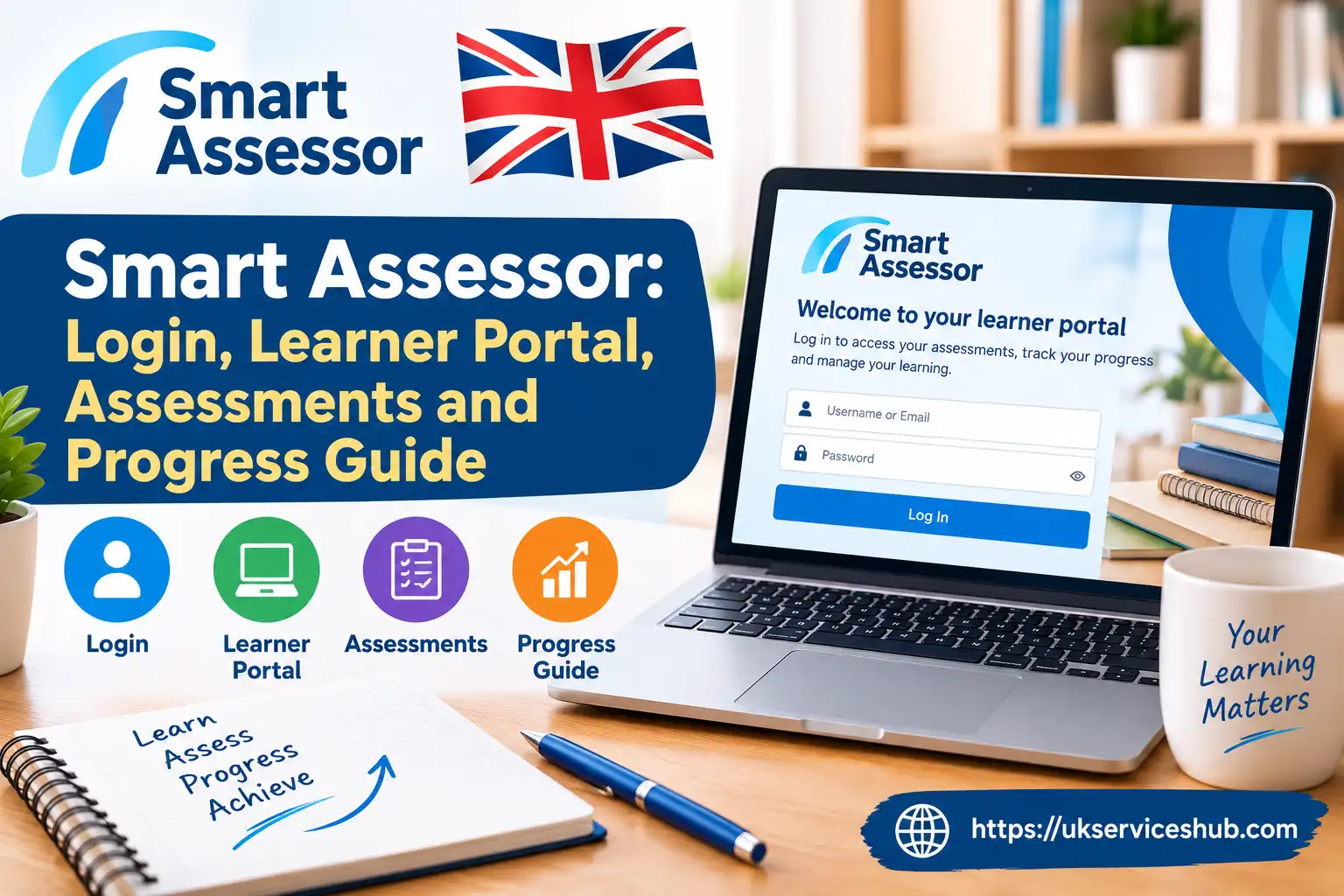
Smart Assessor is an online ePortfolio and assessment platform that helps learners, apprentices, assessors and training providers manage learning evidence, assessments and progress in one place. If you need to access the Smart Assessor login, upload evidence, check assessor feedback or track your learning progress, this guide explains how the platform works.
From accessing the learner portal to completing assessments and keeping your portfolio up to date, understanding the main features can make your learning journey easier to manage. This guide covers the Smart Assessor login process, learner portal, assessments, evidence uploads, progress tracking and common account issues, with practical information to help you use the platform confidently.
Whether you are a new learner trying to sign in or an existing user looking for help with your ePortfolio, the sections below provide a straightforward overview of what you need to know.
What Is Smart Assessor?
Smart Assessor is an ePortfolio and assessment system used for training and qualification programmes. Its main purpose is to bring learner evidence, assessment activity and progress information together in one online environment.
Instead of keeping every piece of coursework in a physical folder, learners can build an electronic portfolio containing evidence that demonstrates their knowledge, skills and competence. Depending on the requirements of your programme, this may include written work, workplace evidence, images, recordings or other supporting material.
The official platform describes the service as suitable for apprentices, work-based learners, classroom students and people undertaking training. It also allows assessors and tutors to monitor progress dynamically.
Why learners use the platform
A typical learner may use the portal to:
The exact menus and activities available to you can depend on your training provider and the qualification you are completing.
Smart Assessor Login: How to Access Your Account

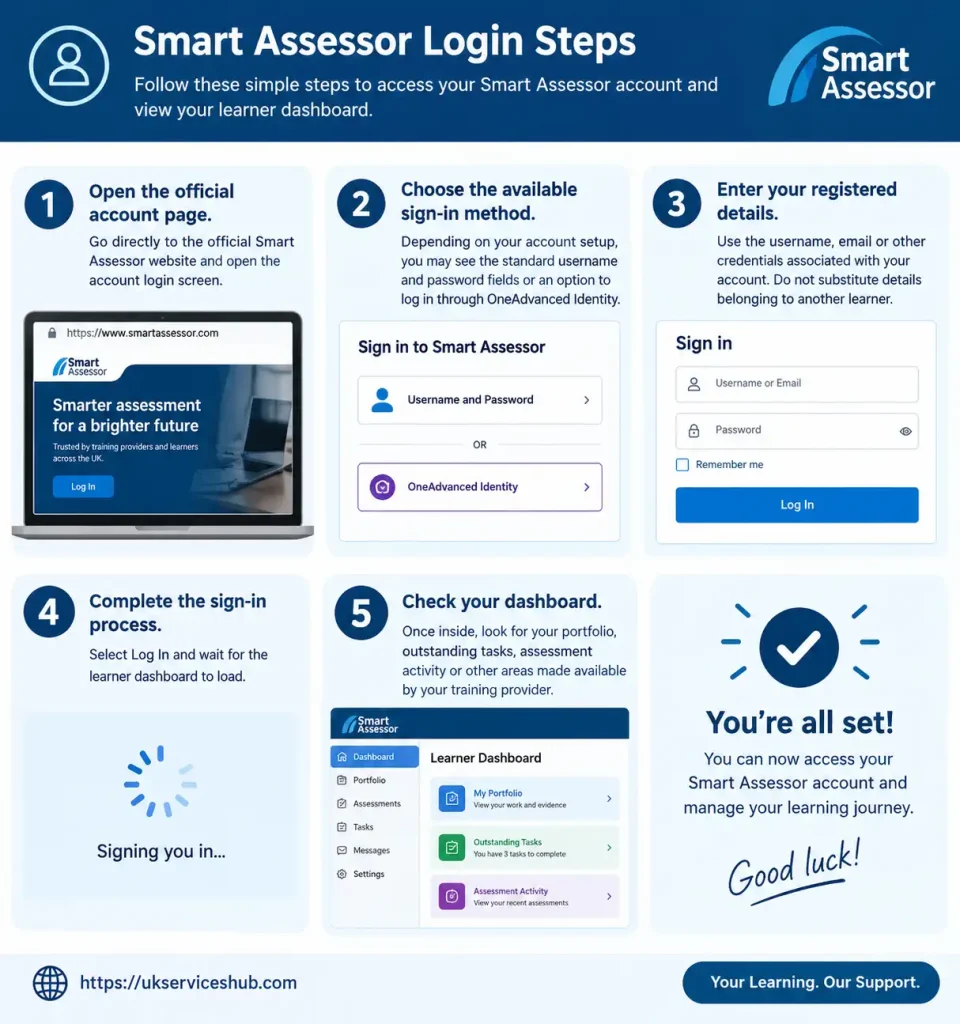
If you need a assessor login, use the official account page rather than relying on third-party websites or search advertisements.
The current official login page provides a username and password sign-in option and also supports OneAdvanced Identity for accounts that have been configured for it.
Smart Assessor login steps
Smart Assessor sign in through OneAdvanced Identity
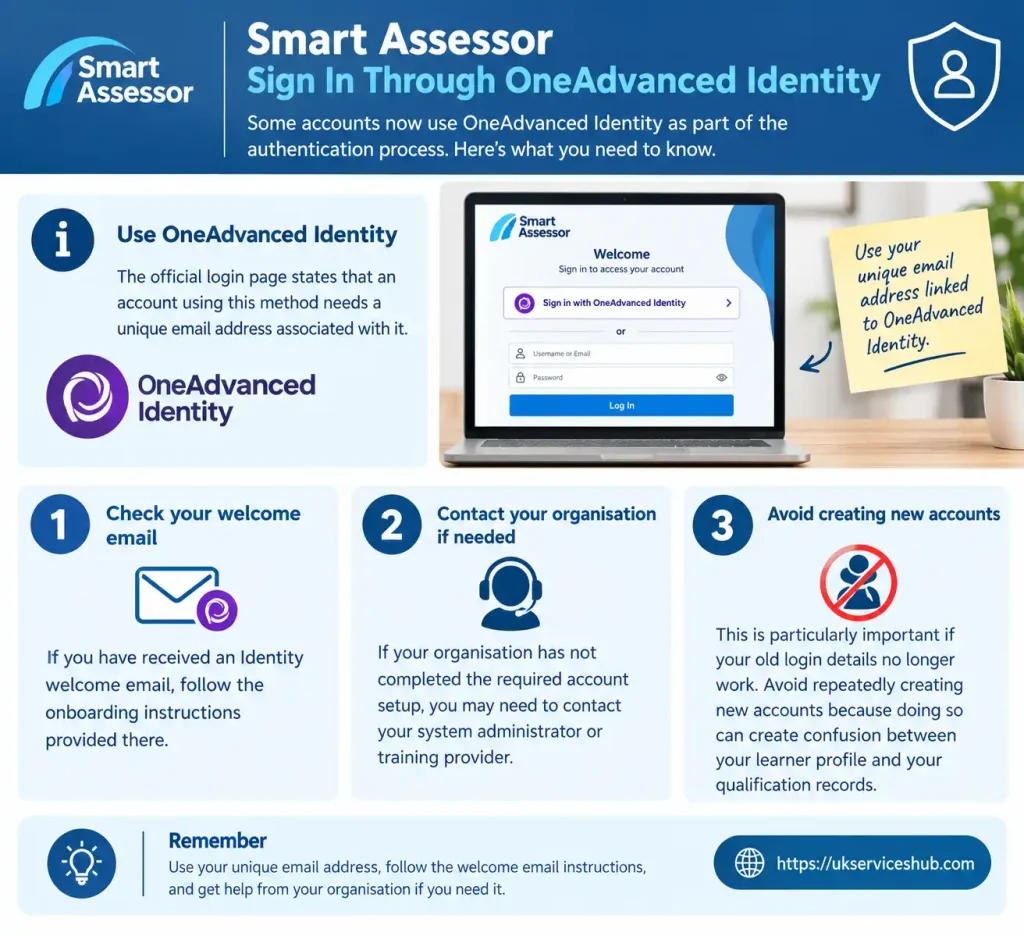
Some accounts now use OneAdvanced Identity as part of the authentication process. The official login page states that an account using this method needs a unique email address associated with it.
If you have received an Identity welcome email, follow the onboarding instructions provided there. If your organisation has not completed the required account setup, you may need to contact your system administrator or training provider.
This is particularly important if your old login details no longer work. Avoid repeatedly creating new accounts because doing so can create confusion between your learner profile and your qualification records.
Smart Assessor Log In Problems: What Should You Check?
A failed assessor log in does not always mean that your password is wrong. There may be an issue with the email linked to your profile, Identity setup or account administration.
Try these checks in order:
The official platform also provides a password and username recovery page for users who have forgotten their credentials.
The recovery page asks for the email associated with your Smart Assessor profile. It also explains that users who sign in through OneAdvanced Identity should return to the previous login screen and use the Identity option for their password reset.
Forgotten Username or Password?
If you cannot remember your login details, use the official recovery process rather than entering your information into an unrelated website.
Password recovery checklist
According to the official recovery page, the email used for the Smart Assessor profile is important when requesting a reset. If the message does not arrive, your assessor may be able to check whether the learner’s email address is correct.
If the problem continues, the official guidance is to contact your System Administrator.
Important: If your organisation has moved your account to OneAdvanced Identity, the standard password-recovery route may not be the correct method. Follow the Identity login process shown on your account screen.
What You Can Do After Smart Assessor Login
After a successful smart assessor login uk session, your available dashboard options depend on your learner account and training provider. The platform is designed around electronic evidence and assessment, so your next task may involve checking a portfolio requirement, responding to an assessor or adding evidence.
A useful habit is to review outstanding actions before uploading new files. This helps you understand exactly what evidence is being requested and prevents unnecessary submissions.
Before uploading evidence, check:
Your assessor remains an important part of the process. The software provides the digital workspace, but your training provider determines the specific assessment requirements attached to your programme.
Building Your ePortfolio
The portfolio is more than a storage area for documents. It is intended to provide evidence that can be reviewed against the requirements of your qualification.
For example, workplace learners may have evidence showing how they carried out a task, while classroom learners may need to provide written assignments or other coursework. The official platform also highlights videos, photographs and voice recordings as possible forms of evidence.
A strong portfolio entry should therefore be easy to understand. Give each submission a clear title and, where the system allows it, provide enough description to explain what the evidence demonstrates.
A practical evidence routine
Choose → Check → Upload → Explain → Submit → Review
This approach reduces the chance of uploading an unrelated document or missing information your assessor needs.
If your provider has given you specific instructions about file types, naming conventions or evidence requirements, follow those instructions first. Platform-wide guidance should not replace the rules for your particular course.
Quick Answer
Where should I use a Assessor login?
Use the official Smart Assessor account page supplied by the platform or the direct portal address provided by your training provider. Current official access supports standard credentials and, for configured accounts, OneAdvanced Identity.
What if I forget my password?
Use the official password recovery page and enter the email associated with your learner profile.
What if I still cannot sign in?
Check your registered details and Identity setup first. If the issue remains, contact your training provider, assessor or system administrator because account configuration may need to be checked.
Is Assessor only for apprentices?
No. The official platform describes it as being suitable for apprentices, work-based learners, classroom students and others undertaking training.
How to Upload Evidence to Your ePortfolio
Once you have accessed your learner account, one of the most useful areas is the electronic portfolio. This is where you can organise evidence that supports the work you have completed during your course, apprenticeship or training programme.
The exact menu names can vary according to how your training provider has configured the platform. You may see options such as My Portfolio, ePortfolio, evidence areas or task-related sections.
Before submitting anything, read the assessment instructions carefully. Uploading a large number of files is not necessarily better; the evidence should be relevant to the criteria you are being assessed against.
A practical submission process
1. Open your portfolio area
From the learner dashboard, locate the section used for your portfolio or evidence.
2. Find the relevant requirement
Select the unit, task, learning outcome or assessment area connected with the evidence you want to submit.
3. Add your evidence
Use the available upload or evidence option to attach your document or other supporting material.
4. Give the submission a clear name
A useful title tells your assessor what the file relates to. For example:
Customer Service – Workplace Observation – Unit 2
Avoid vague names such as final.docx or newfile.pdf, particularly when you have several submissions.
5. Add context where requested
If the platform provides a description field, explain briefly what the evidence shows and how it relates to the assessment requirement.
6. Link the evidence to the appropriate criteria
Where your provider has enabled criteria mapping, select the relevant learning outcomes or requirements covered by the evidence.
7. Submit it for review
Check the attachment and description before finalising the submission. Once you are satisfied, use the relevant submission or send-for-assessment option.
Evidence does not always mean a written assignment
Depending on your programme, evidence can take different forms. Smart Assessor’s official description highlights the use of electronic portfolios for evidence and specifically refers to formats such as documents, photographs, videos and voice recordings.
Your course requirements determine which type is appropriate. An assessor may ask for workplace evidence in one situation and written work or another form of demonstration in another.
Preparing Files Before You Upload
A little preparation can save time later.
Before adding a file to your portfolio, check its:
Your training provider’s requirements should take priority over generic advice about file formats or sizes. The information supplied for this guide does not establish universal Smart Assessor file-size limits for every account, so learners should not assume that one maximum applies to all portals.
A simple evidence checklist
Before selecting Submit, ask yourself:
| Check | Question |
|---|---|
| Relevance | Does this evidence relate directly to the requested requirement? |
| Clarity | Can the assessor understand what the file demonstrates? |
| Completeness | Have I included everything requested? |
| Identification | Is the file clearly named? |
| Accuracy | Is the information correct and up to date? |
| Privacy | Does it contain unnecessary sensitive information? |
This short check can prevent avoidable assessor queries.
Understanding Assessments and Assessor Reviews
Uploading evidence is only one stage of the learning process. Your assessor may then review the submission and decide whether it provides enough evidence for the relevant requirement.
The exact workflow depends on your training organisation and qualification. Some learners may have tasks, reviews, feedback forms or assessment activities visible from their dashboard.
If an assessment or review appears in your account, open it and read the instructions before entering information.
What an online review may involve
A review can include areas such as:
Not every learner will see the same fields. Your provider controls the activities attached to your programme.
Before submitting an assessment
Take a moment to read through your answers. If you have been asked to reflect on your progress, give specific information rather than a one-word response.
For example, instead of simply writing “completed”, explain what you completed and identify any issue that still needs attention.
That gives your assessor useful information and can make progress reviews more meaningful.
What Happens When an Assessor Reviews Your Evidence?
The assessment process can involve more than simply marking a file as accepted or rejected.
Your assessor may:
If additional evidence is requested, read the feedback carefully before uploading another version. The assessor’s comments should tell you what needs clarification or improvement.
Don’t ignore returned work
A returned submission is not necessarily a sign that the entire task has failed. It may simply mean that the evidence does not yet demonstrate a particular requirement clearly enough.
Look for the specific action requested by the assessor. Then address that point rather than repeatedly submitting the same document.
Tracking Your Qualification Progress
One of the main advantages of an electronic portfolio is that your learning activity can be monitored digitally. The official Smart Assessor material describes dynamic monitoring of learner progress as part of the platform’s purpose.
Your dashboard may therefore provide information about completed work, outstanding tasks or assessment activity.
The exact appearance will depend on your organisation’s configuration, so do not assume that every learner sees identical progress indicators.
What progress information can tell you
A progress view can help you identify:
Think of the dashboard as a working overview rather than a replacement for communication with your tutor or assessor.
If something appears incomplete but you believe you have already submitted it, check the relevant evidence or assessment area and ask your provider to investigate if necessary.
Off-the-Job Training and Learning Records
Apprentices may also have training-related recording requirements connected with their programme. If your provider asks you to maintain an off-the-job training record through the platform, keep it updated according to their instructions.
Do not assume that every Smart Assessor account uses exactly the same fields or calculations. Your apprenticeship provider is responsible for explaining what you need to record and how often it should be updated.
A useful routine is to record activities soon after they happen rather than trying to reconstruct several weeks of learning at once.
Examples of information you may need to keep track of
Depending on your provider’s process, this could include:
Always follow the requirements given by your training organisation.
Smart Assessor UK: Tips for International and Remote Learners
People studying or working towards UK qualifications from different locations may find the terminology in a training portal unfamiliar.
Terms such as assessment criteria, learning outcomes, evidence, assessor, portfolio and progress review have specific meanings in vocational education.
If English is not your first language, use the instructions supplied by your provider as the main reference. Browser translation can sometimes alter technical terminology, so be careful when translating assessment instructions.
If you are studying from outside the UK
Keep these habits in place:
The platform itself does not replace your training provider. Your provider remains the key point of contact for qualification-specific requirements.
Keeping Your Portfolio Organised
A well-organised portfolio is easier to maintain and easier for an assessor to review.
Rather than uploading files with random names, create a consistent naming approach. For example:
Unit – Task – Evidence Type – Date
A filename such as:
Unit-3-Workplace-Observation-October.pdf
is much easier to identify later than:
document123.pdf
You should also avoid submitting duplicate versions unless your assessor has asked for a revised copy.
Good portfolio habits
Review regularly.
Do not wait until the end of the course to discover that several requirements still need evidence.
Read feedback.
Assessor comments often explain the next action you need to take.
Keep evidence relevant.
A smaller set of well-chosen evidence can be more useful than a collection of unrelated files.
Ask early.
If you cannot understand a requirement, contact your tutor or assessor before the deadline.
Common Evidence Mistakes to Avoid
Several simple problems can make digital assessment harder than it needs to be.
1. Uploading the wrong document
Check the file before submitting it. Similar filenames can make it easy to select an older version.
2. Giving no explanation
If a description is requested, do not leave it blank. Explain what the evidence demonstrates.
3. Ignoring assessor feedback
Read comments before submitting additional evidence. The feedback usually identifies what needs attention.
4. Leaving tasks until the last minute
A technical problem, missing document or assessor query can delay completion. Working steadily gives you time to resolve issues.
5. Sharing account credentials
Your username, password and authentication information should remain private. If someone needs access for legitimate administrative reasons, use the process provided by your organisation rather than sharing passwords informally.
A Useful Weekly Routine
You do not need to spend hours checking the portal every day. A short weekly review can be enough for many learners, provided it matches the schedule set by your provider.
Weekly portfolio check
Monday or start of your learning week
During the week
Before the end of the week
At the next review
This approach turns the portal into part of your normal study routine rather than something you only open when a deadline is approaching.
What If Your Evidence Is Rejected or Sent Back?
Do not immediately upload the same file again.
First, read the assessor’s feedback. Identify the exact criterion or evidence requirement that has not been demonstrated.
Then consider:
If the feedback is unclear, ask your assessor for clarification. It is better to understand the requirement before making another submission.
Smart Assessor Sign In: A Simple Learner Checklist
Keep this short checklist handy when you need to access your account:
☐ Open the official portal
☐ Select the appropriate sign-in method
☐ Enter your registered credentials
☐ Check your dashboard
☐ Review outstanding tasks
☐ Check assessor feedback
☐ Prepare requested evidence
☐ Upload the correct file
☐ Add supporting information when required
☐ Submit the work for review
☐ Return later to check the assessment status
The exact buttons may differ from the labels above because your training organisation controls aspects of the learner experience.
Smart Assessor Account Help and Troubleshooting
Even when your learner account is correctly configured, you may occasionally run into a login, browser or submission problem. The best approach is to identify whether the issue concerns your credentials, the platform, your internet connection or your training provider’s account settings.
Start with the basics before contacting support. This can save time and also gives your provider useful information if the problem needs to be escalated.
If the login page will not work
Try the following:
Do not repeatedly enter incorrect credentials if you suspect that your account may be locked or incorrectly configured.
If your password has been forgotten
Use the official recovery route rather than asking another learner for their credentials.
Official password recovery:
The official recovery page asks for the email address associated with the account. It also provides guidance for users whose account is connected to OneAdvanced Identity.
If you do not know which email address is attached to your learner record, your training provider may need to confirm it.
What to Do When a File Will Not Upload
A failed upload can have several possible causes. Before assuming the platform is unavailable, check the file itself.
File-upload checklist
Check the format.
Make sure the file type is permitted by your training provider.
Check the size.
Large videos, images and scanned documents can be difficult to upload. If your provider has specified a maximum size, stay within that limit.
Rename the file.
Use a short, descriptive filename without unnecessary symbols.
Try again later.
A temporary connection problem can interrupt an upload.
Use another browser.
If the issue appears to be browser-related, testing another current browser can help identify the cause.
Contact your provider if it continues.
They may be able to determine whether the problem is related to your account, course setup or the platform.
Do not rely on a generic file-size figure unless your training provider has confirmed it for your account. Different configurations may have different requirements.
When Your Account Details Are Wrong
Sometimes the problem is not the password. Your learner record may contain an outdated email address or other information that needs administrative attention.
If you can sign in but notice that your details are incorrect, contact your training provider rather than creating a second account.
This is especially important when your portfolio contains assessment evidence. Creating a separate profile could make it harder for your provider to connect your work with the correct learner record.
Contact your provider when:
Your tutor, assessor or system administrator is normally the right person to contact because they can check account-specific information that a general public webpage cannot.
Smart Assessor Login UK: Use the Official Source
When searching for smart assessor login uk, be careful about unofficial pages that imitate login screens or offer instructions without a clear connection to the platform.
For account access, use the official website:
Official Smart Assessor website:
Official account login:
The official account page is the safest starting point when you need to enter credentials.
Always check the address bar before entering your password. Avoid providing login information through links sent by unknown people or websites.
Smart Assessor Sign In and OneAdvanced Identity
OneAdvanced Identity is relevant to some current account setups. The official Smart Assessor login page provides a dedicated option for users whose organisation has configured their account for this authentication method.
If you have been instructed to use OneAdvanced Identity:
If the Identity option is not available or your email has not been recognised, speak to your training provider. Do not assume that creating another account will solve the issue.
Protecting Your Learner Account
Your ePortfolio can contain coursework, workplace evidence, personal information and assessment records. Treat the account as you would any other educational or professional account.
Basic security habits
If you believe someone else has accessed your account, contact your training provider as soon as possible and follow their security instructions.
Frequently Asked Questions
Conclusion
Smart Assessor provides a practical way for learners and assessors to manage ePortfolios, assessments, evidence, feedback and progress in one place. From accessing the Smart Assessor login page to uploading evidence and checking assessment updates, the platform can help keep learning and assessment activities organised.
For learners, understanding how to use the portal effectively can make it easier to submit evidence, respond to assessor feedback and monitor progress towards completing their qualification. If you experience problems with your Smart Assessor log in, password or account access, using the official recovery and support options can help resolve common issues.
Whether you are starting a course, regularly uploading portfolio evidence or reviewing your assessment progress, knowing how the Smart Assessor learner portal works can make the assessment process simpler and easier to manage. Keep your evidence organised, check feedback regularly and stay in communication with your assessor to maintain steady progress towards your qualification.
Read more..