Hwb Wales 2026: Login, Microsoft 365, Teams & School Guide

Hwb login is the main gateway for students, teachers and eligible education users who need to access the Welsh Government’s Hwb digital learning platform. Once signed in, users can reach a range of online learning services, including Microsoft 365, Microsoft Teams, educational resources and school-related tools.
For learners and education staff, Hwb login provides a central place to manage access to the digital services used for teaching, learning and school communication. Depending on the account type, users may sign in with a school-issued Hwb username or full Hwb email address and may also need additional security verification.
This guide covers the key information you need to understand Hwb Wales, including how Hwb login works, how to access Teams Hwb and Microsoft 365, what a school Hwb account provides, and what to check when you experience common login or password problems. Whether you are a student accessing learning materials from home or a teacher using Microsoft Teams for school activities, understanding the Hwb dashboard can make it easier to find the service you need.
With the right account details, accessing Hwb is a straightforward way to reach the digital tools and resources provided through the platform.Visit our home for more information.Click Here
What Is Hwb?
Hwb is the Welsh Government’s national digital learning platform for maintained schools in Wales. It brings together educational resources, digital learning services and a range of online tools so that learners and education staff can access resources through a central digital environment.
For students, Hwb login provides a route into services used by their school, including Microsoft 365 and other learning applications. Teachers and school staff can also use their Hwb account to access teaching resources and digital services.
One of the main advantages of the platform is its single digital identity. Hwb states that its login provides access to a range of centrally funded digital tools and services, including Microsoft 365, Google Workspace for Education and Adobe Express.
The platform is designed for education in Wales, so the exact tools available can depend on the user’s role and the way their school, local authority or institution manages its Hwb services.
Hwb at a Glance
| Feature | What it provides |
|---|---|
| Hwb login | Access to the Hwb platform and connected services |
| Microsoft 365 | Word, Excel, PowerPoint, Teams, Outlook and other applications |
| Google Workspace | Tools such as Google Docs, Drive and Classroom |
| Just2easy | Creative, coding and game-based learning tools |
| Minecraft Education | Game-based educational activities and coding |
| Learning resources | Curriculum-related resources and teaching materials |
| Support | Guidance for passwords, accounts, security and digital services |
Hwb’s official support area currently includes separate guidance for logging in, passwords, Microsoft 365, Google services, J2e, Minecraft Education and other learning and teaching tools.
Who Can Use Hwb?
Hwb is primarily designed around the Welsh education system. Maintained schools in Wales have Hwb login details for staff and learners, which are normally provided through the school’s Digital Champion or IT coordinator.
Access arrangements differ according to the type of user.
Students and Pupils
Learners in maintained schools are provided with Hwb credentials through their school. These credentials can then be used to access Hwb and the services enabled for their account.
Teachers and School Staff
Teachers and other eligible school staff receive their access through the school or relevant Hwb administration arrangements. Their account can provide access to teaching tools, Microsoft 365 and other services available to their role.
Further and Higher Education Users
FE and HE students or staff generally use an institution-provided Single Sign-On route. Hwb explains that users should contact their college or university IT team for the relevant Hwb SSO link.
Parents and Carers
Parents do not simply receive an individual Hwb account in the same way as school learners. They can still use the public areas of the Hwb website for information, educational resources and online safety guidance.
Hwb Login: How to Sign In
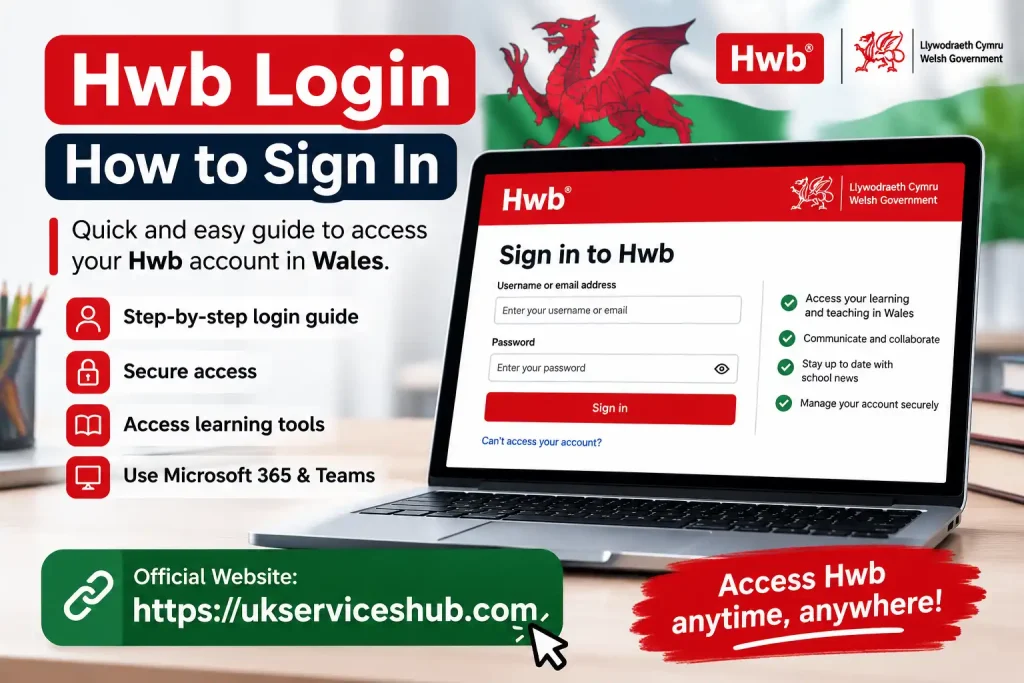
If your school has already provided your credentials, accessing Hwb is straightforward.
Step 1: Open Hwb
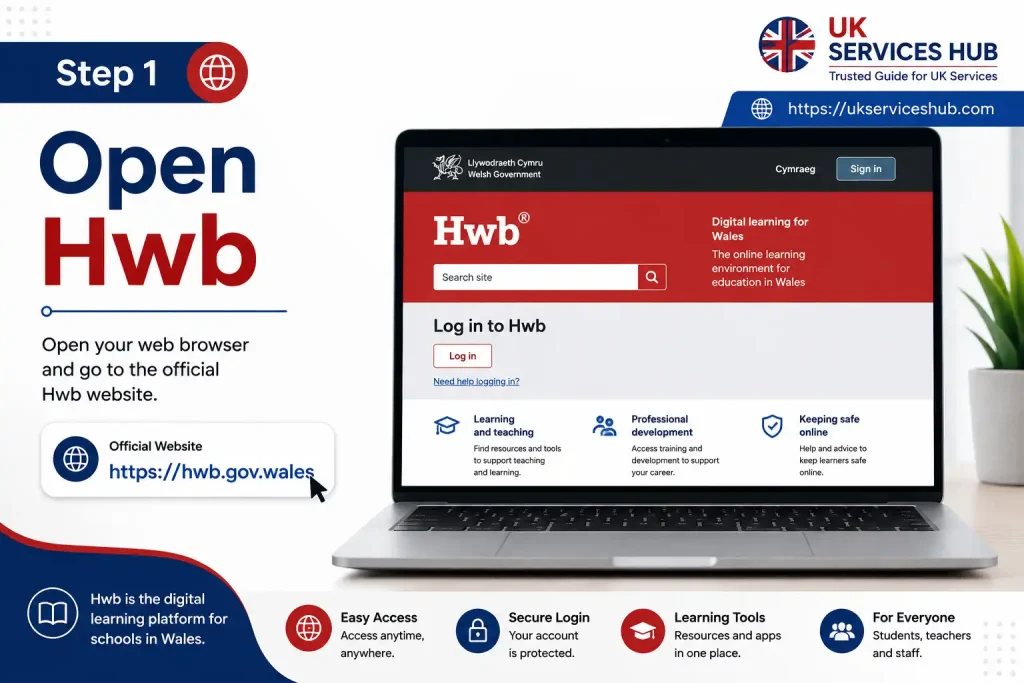
Use a current web browser and go to the official Hwb website.
Avoid relying on unofficial login pages or third-party websites when entering your school account details. The official Hwb domain is hwb.gov.wales.
Step 2: Select “Log in”
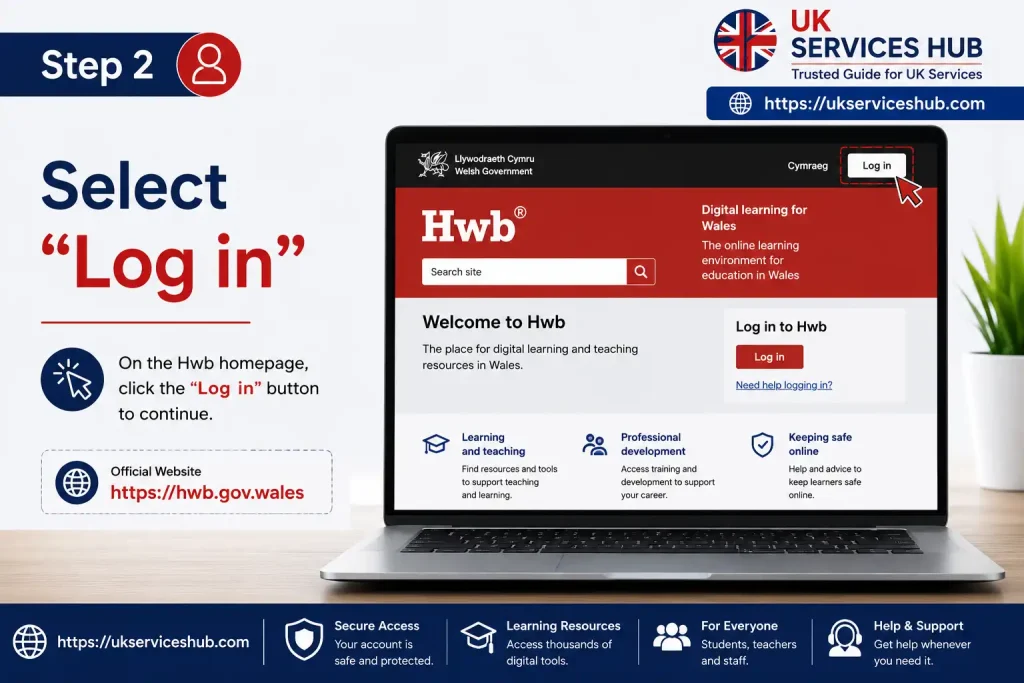
Look for the Log in option on the Hwb website and select it.
This takes you towards the Hwb authentication service where you can enter your account details.
Step 3: Enter Your Hwb Username
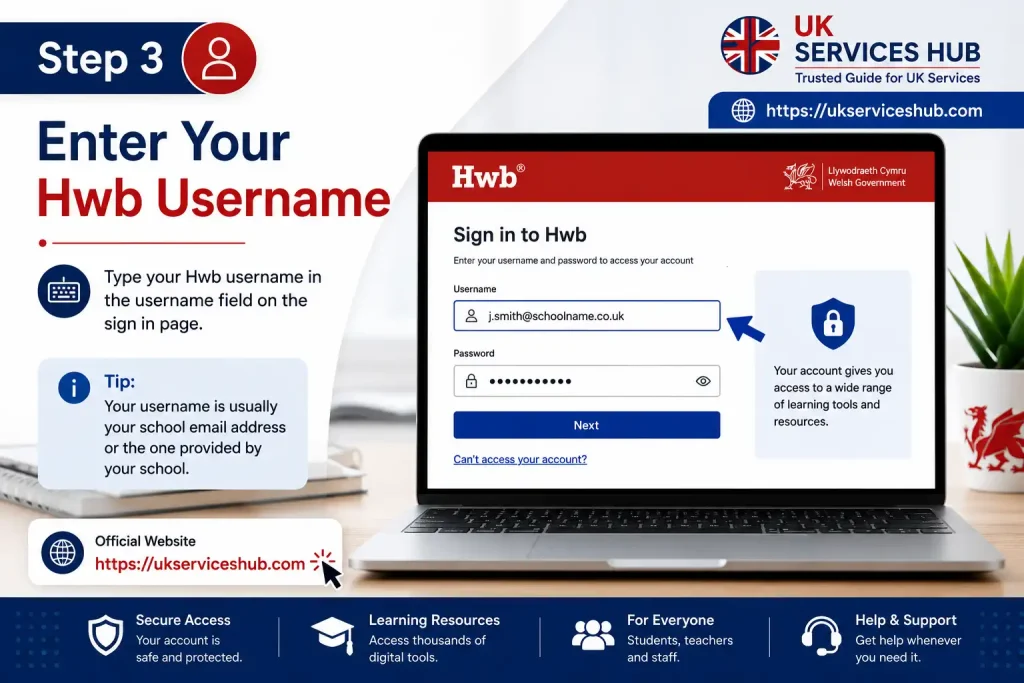
Your school will provide the username associated with your account.
Depending on the service you are accessing, you may need to use either the shorter Hwb username or the full Hwb email-style username.
For example, your credentials may follow a format similar to:
The exact account details should always come from your school or Hwb administrator rather than being guessed.
Step 4: Enter Your Password

Type your Hwb password carefully and continue with the sign-in process.
If you are accessing Hwb away from your normal school or workplace environment, additional authentication requirements may apply. Hwb currently provides separate guidance covering remote login and multi-factor authentication.
Step 5: Open the Service You Need
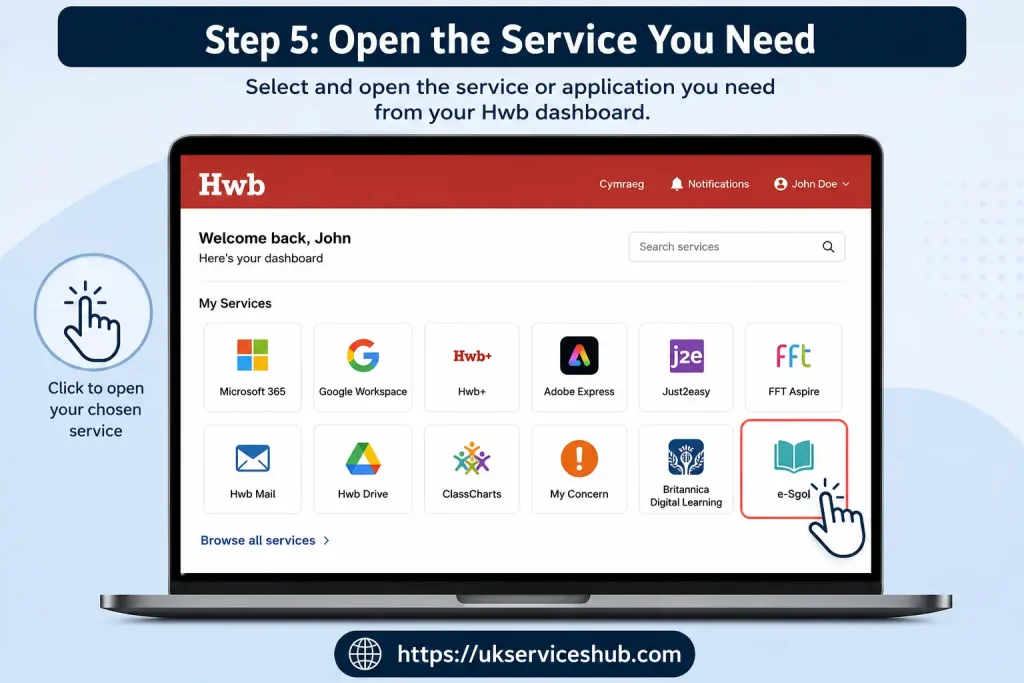
Once authenticated, you can select the relevant service from Hwb.
Depending on your account, this can include Microsoft 365, Google Workspace, learning applications and other educational tools.
Quick tip: If you are using a shared family computer, make sure the browser is not automatically signed into another person’s Microsoft or Google account. Using separate browser profiles can help prevent account mix-ups.
What Can You Access After Hwb Login?
Hwb is more than a basic school login page. It acts as a gateway to several digital learning services.
The exact selection varies by user type, but major services include Microsoft 365, Google Workspace for Education, Just2easy, Minecraft Education and other educational resources. Hwb’s operational guidance confirms that many of these services use the central Hwb digital identity.
Microsoft 365 Through Hwb
Microsoft 365 is one of the most useful services connected with Hwb.
Eligible users can access applications including:
Hwb’s current Microsoft 365 guidance says eligible learners and school staff can install Microsoft 365 on up to 15 personal devices: five PCs or Macs, five tablets and five smartphones.
This makes the service useful both inside school and for learning at home.
Teams Hwb: Using Microsoft Teams Through Your Account
Teams Hwb is commonly associated with Microsoft Teams access through the Hwb Microsoft 365 environment.
Schools can use Microsoft Teams for digital communication, class activities and collaboration. Hwb’s Microsoft 365 section currently provides guidance on creating and managing Class Teams and using Microsoft education services.
After signing into Hwb, eligible users can access Microsoft 365 and then select the Microsoft application they need.
A Typical Teams Hwb Access Route
The teams visible to a learner or teacher depend on the classes and permissions assigned by the school.
Important: If Teams does not show the expected class, don’t create a duplicate account. First check that you are using your school Hwb account and then speak to your teacher or school IT administrator.
School Hwb: How Schools Use the Platform
The phrase school Hwb can refer to the way schools use Hwb as their central digital learning environment.
A school may use several services connected through the platform, including Microsoft 365, Google Workspace, Just2easy and other approved educational applications.
Hwb’s operational information describes the platform as the national digital learning platform for maintained schools in Wales and notes that schools and local authorities can have delegated responsibilities for managing certain services.
This means two schools may not use every Hwb feature in exactly the same way.
For example, one school might rely heavily on Microsoft Teams for online assignments and communication, while another may use Google Classroom, Hwb resources or J2e more extensively.
What Students May Use School Hwb For
Depending on their school’s setup, learners may use Hwb to:
The important point is that Hwb provides the digital environment, while the school determines how many of the available services are used for learning.
Microsoft 365 Through Hwb
One of the main reasons students and staff use their Hwb login is to reach Microsoft 365. The service brings familiar productivity applications into the Welsh education environment, making it possible to create documents, presentations, spreadsheets and other schoolwork from supported devices.
After signing in to Hwb, eligible users can open the Microsoft 365 area and choose the application they need. Depending on the account and permissions, this may include Word, Excel, PowerPoint, Outlook and Microsoft Teams.
Hwb also provides Microsoft 365 installation guidance for eligible learners and school staff. According to the supplied Hwb information, students can install Microsoft Office across up to 15 personal devices, covering five PCs or Macs, five tablets and five smartphones.
How to Install Microsoft 365
If your account is eligible, the general process is:
If the installation option isn’t available, your account may not have the required licence or your school may manage software installation differently.
Teams Hwb for Online Learning
Teams Hwb gives schools a practical way to use Microsoft Teams within their Hwb environment. Teachers can create class spaces where pupils can communicate, collaborate and access learning activities.
A Teams class can be useful for organising digital lessons because students don’t have to rely on separate personal accounts. Instead, the school-managed Hwb identity can be used with supported Microsoft services.
How to Open Teams Through Hwb
The usual route is:
Hwb → Microsoft 365 → Teams → Your Class Team
Once Teams opens, you may see one or more teams assigned to your account.
A student might find:
The exact layout depends on how the school has configured Microsoft Teams.
Teams Hwb Login Problems
If Teams opens but your class is missing, check these points before contacting support:
Don’t create another Microsoft account simply because a school class isn’t showing. Your school-managed identity is normally the account you should use for education services.
Google Workspace and Hwb
Hwb also provides access to Google for Education services for supported users. These tools can include Google Docs, Drive and Classroom.
Google Workspace can be particularly useful when students need to collaborate on documents or access files shared by their teachers.
The route to Google services can vary according to the Hwb interface and the services enabled for the user. If your school uses Google Classroom, follow the school’s instructions for joining classes and accessing assignments.
Google Tools You May Encounter
| Tool | Common use |
|---|---|
| Google Docs | Writing and collaborative documents |
| Google Drive | Storing and organising files |
| Google Classroom | Classwork, assignments and communication |
| Google Slides | Presentations and group projects |
| Google Sheets | Spreadsheets and data |
Having both Microsoft and Google services available doesn’t necessarily mean that every school uses both. Your school decides which digital tools form part of its normal teaching setup.
Just2easy and J2e
Another service associated with Hwb is Just2easy, commonly referred to as J2e.
J2e provides digital learning and creative tools that can support activities such as coding, digital artwork and interactive learning. The supplied platform information also references J2blast, which can be used for activities involving areas such as maths and spelling.
For students, access generally starts through the Hwb environment or the relevant J2e service provided by their school.
If you’re trying to access J2e independently and don’t know which account to use, check with your teacher rather than creating a separate account.
Minecraft Education Through Hwb
Hwb can also provide access to Minecraft Education, which uses game-based activities to support learning.
Minecraft Education can be used for different subjects and projects, including creative work, STEM-related activities, history and coding.
The availability of Minecraft Education depends on the user’s eligibility and school arrangements. Where it is provided through Hwb, students should use the account and download instructions supplied by their school.
The important distinction is that Minecraft Education is an educational version of Minecraft, rather than simply using a standard personal Minecraft account for schoolwork.
Hwb Password Recovery
A forgotten password can be confusing because Hwb accounts are managed differently from ordinary personal websites.
The supplied Hwb information states that password recovery depends on the user’s role and that school pupils should normally contact their teacher or the school’s Digital Champion rather than relying on an automated password-reset email.
Forgotten Password for School Students
If you’re a pupil and cannot remember your Hwb password:
Don’t repeatedly guess your password. This can make account access more difficult if security controls are triggered.
Teachers and School Staff
Teachers and other school staff should normally contact their school’s Hwb administrator or the relevant local authority IT support team if they have an account problem.
The school or local authority manages the appropriate support route for staff accounts.
FE and HE Users
Students and staff in further or higher education should contact their college or university IT support team for account or SSO problems.
This is important because the institution may control the authentication process rather than the individual user managing the account directly.
Hwb Login Not Working? Try These Checks
If your Hwb login isn’t working, the problem isn’t necessarily your password. A few basic checks can identify common causes.
1. Check the Website
Make sure you’re using the official Hwb website:
Avoid entering your school credentials into websites that imitate the Hwb login page.
2. Check Your Username
Type your Hwb username exactly as provided by your school.
If a service requires the full Hwb email-style username, don’t replace it with a personal email address.
3. Check Your Password
Passwords are case-sensitive, so check Caps Lock and make sure there aren’t accidental spaces.
4. Try a Different Browser
If the login page behaves unexpectedly, try a supported, up-to-date browser.
You can also try a private or incognito window if an old login session appears to be interfering.
5. Check Microsoft or Google Accounts
If Hwb itself works but Teams or another connected service doesn’t, check whether your browser has automatically selected a personal Microsoft or Google account.
This is a common source of confusion when a student uses the same device for school and personal accounts.
6. Contact Your School
If none of these checks solves the problem, your school is usually the best starting point for a pupil account issue.
Hwb Resources You Can Use Without a Login
Not everything on Hwb requires an account.
The public website contains educational and guidance material that can be accessed without signing into a student account. This makes Hwb useful not only as a login platform but also as a public source of information for families and educators.
Important areas include:
Online Safety
The Hwb Online Safety area provides information relating to internet safety, online behaviour, cyberbullying and digital wellbeing.
This can be useful for pupils, parents, carers and teachers who want guidance on safer use of technology.
Curriculum for Wales
Hwb also provides resources connected with the Curriculum for Wales, including curriculum frameworks, guidance and subject-related information.
Teachers can use these resources when planning learning activities, while families can use them to understand the curriculum more clearly.
Support Centre
The Hwb support area contains technical guidance and information covering different Hwb services.
If you’re trying to resolve an account, application or access issue, checking the official support material before changing account settings is a sensible first step.
Hwb Account Access by User Type
| User | Typical support route |
|---|---|
| School pupil | Teacher, school Digital Champion or Hwb administrator |
| School teacher/staff member | School Hwb administrator or local authority IT support |
| FE student/staff | College IT support or institutional SSO administrator |
| HE student/staff | University IT support or institutional SSO administrator |
| Parent/carer | Public Hwb resources; contact school where school-specific information is needed |
The key thing to remember is that Hwb isn’t operated like an ordinary consumer website where every user independently creates and resets their account.
Making the Most of Your Hwb Account
Once your Hwb login is working, the platform can become a central starting point for schoolwork and digital learning. Rather than treating Hwb as only a sign-in page, students and staff can use it to reach several services from one education-focused environment.
The tools available to you depend on your role and your school’s setup. Some services may be available to one group of users but not another.
Key benefits of Hwb include:
This centralised approach can make it easier for schools to manage digital learning while giving students a familiar route to the tools they need.
School Hwb: What Students Should Know
For pupils, school Hwb access is normally connected to the account provided by their school.
That means your school may use Hwb for several different activities rather than having separate usernames for every educational service. Your teacher may ask you to use Hwb to reach Microsoft Teams, Microsoft 365, Google services or another approved learning application.
However, not every school will use every available service.
For example, one school might use Teams extensively for assignments, while another could rely more heavily on Google Classroom or other learning applications. Your teacher’s instructions should therefore take priority over general instructions found online.
If Your School Uses Several Hwb Services
It helps to keep the following distinction in mind:
Hwb account → Your education identity and gateway
Microsoft 365 → Productivity and collaboration tools
Teams → Online classes, communication and collaboration
Google Workspace → Google-based learning and collaboration
J2e → Creative and educational activities
Minecraft Education → Game-based learning
This can prevent confusion when several applications appear on the same device.
Hwb Security and Account Safety
Because a Hwb account can provide access to multiple educational services, students should treat their login details carefully.
Protect Your Password
Never share your password with classmates or other people.
If someone needs to help with an account problem, use the official school support route instead of giving them your password.
Use the Official Website
Always check that you’re visiting the genuine Hwb domain:
Be particularly careful with search results or messages containing unfamiliar login links.
Sign Out on Shared Devices
If you’re using a computer that other people can access, sign out when you’ve finished.
This is especially important when using Microsoft 365, Teams, Google services or other applications containing school information.
Don’t Create a Replacement Account
If you can’t access your school Hwb account, don’t immediately create a personal account as a replacement.
A personal Microsoft or Google account may not have access to your school’s Teams classes, assignments or other Hwb-connected services.
What If Hwb Works but Teams Doesn’t?
This is an important distinction.
If you can successfully complete your Hwb login, but Microsoft Teams doesn’t work, the issue may be with the connected Microsoft service, your account permissions, or the particular class/team you’re trying to access.
Try this sequence:
If other students in your class have the same problem, tell your teacher. The issue may be related to the school’s configuration rather than your individual account.
What If You Forget Your Hwb Username?
Students should normally obtain their Hwb credentials from their school.
If you don’t know your username, contact your class teacher, school office, Digital Champion or the person responsible for Hwb administration at your school.
Trying random username formats isn’t a good solution because the correct account information is determined by your education organisation.
For FE or HE users, the institution’s IT support team is the appropriate starting point.
Hwb Support and Help
Hwb provides an official support area covering login and password guidance, Microsoft 365, learning and teaching services and other aspects of the platform.
For school-specific account problems, however, your school may be able to resolve the issue faster because it manages your local account arrangements.
Use This Support Order
Student account problem
→ Teacher / school Digital Champion
→ School Hwb administrator
→ Local authority or relevant technical support where applicable
College or university account
→ Institution IT helpdesk
→ SSO administrator where appropriate
This approach avoids contacting the wrong support team for an account controlled by your school or institution.
Important Hwb Links
Here are the main official destinations worth bookmarking:
| Purpose | Official resource |
|---|---|
| Hwb homepage | Hwb official website |
| Help and support | Hwb Help and Support |
| Microsoft 365 guidance | Hwb Microsoft 365 information |
| Hwb login/password help | Logging in and passwords |
| Hwb services information | Hwb services and operational information |
Frequently Asked Questions About Hwb Login
Conclusion
Hwb Wales 2026 makes it easier for learners, teachers and school staff to reach important digital education services in one place. After completing your Hwb login, you can access tools such as Microsoft 365 and Microsoft Teams, along with other services available through your Hwb dashboard.
If you need to use Hwb from home, simply sign in with your authorised account details and complete any additional security verification required. Keeping your login information secure will help you maintain reliable access to your Hwb account and school resources.