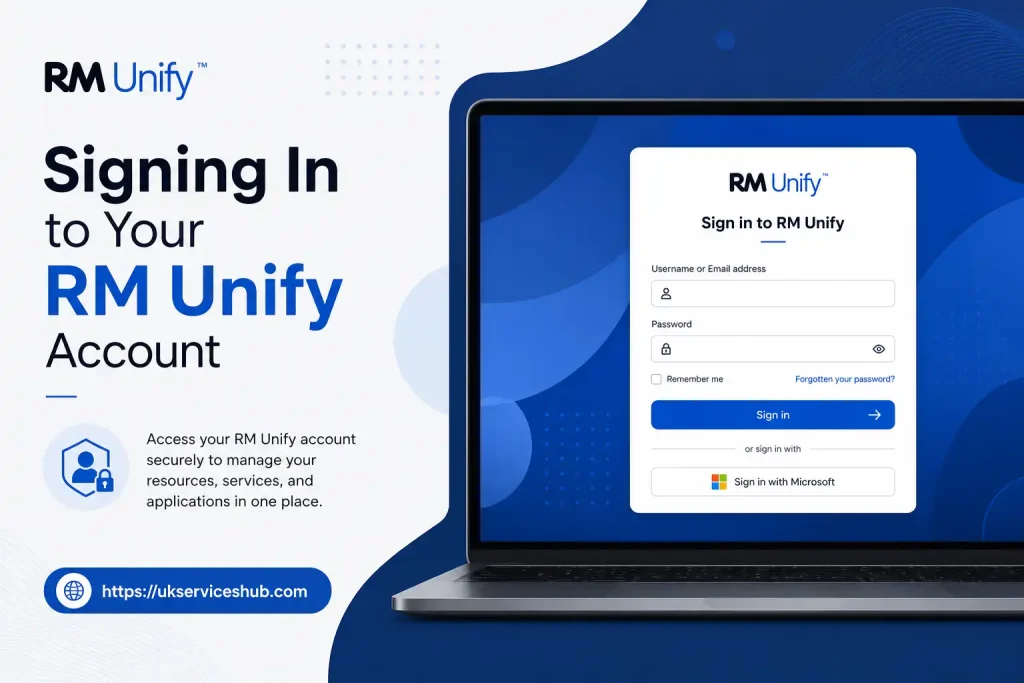
RM Unify: Complete Guide to Login, Apps & School Access

RM Unify is a secure school access platform that brings important digital learning tools, applications and online services together in one convenient place. Students, teachers and authorised school staff can use their school-issued credentials to access a personalised Launchpad and open the resources assigned to their account.
Instead of remembering separate usernames and passwords for every school application, an RM Unify login can provide a central route to connected services. Depending on how a school has configured the platform, users may have access to learning tools, cloud services, communication platforms and other educational applications.
This complete guide explains how RM Unify works, how to sign in, access school apps, manage your Launchpad and solve common login problems. Whether you are a student, teacher or staff member, you will find practical information to help you access your school’s digital services safely and confidently. Visit our homepage for more information Click Here
What Is RM Unify?
RM Unify is a secure digital access platform designed for schools and educational organisations. It provides students, teachers and authorised staff with a central place to access the online applications and learning services assigned to them.
Instead of remembering separate usernames and passwords for every school platform, users can complete an access their personalised Launchpad. The Launchpad displays applications and resources based on the user’s role, permissions and the way their school has configured the system.
Depending on the school’s setup, RM may provide access to learning platforms, cloud services, communication tools and other school-approved applications. This makes it easier for authorised users to find the digital resources they need from one central location.
The applications available through Unify can differ between users. For example, a student may see different apps and shortcuts from those available to a teacher or school administrator. Access is managed by the educational organisation to ensure users can reach the services relevant to their account.
Understanding RM Unify
RM Unify is an educational Single Sign-On (SSO) platform that connects a user’s school account with the digital services their organisation uses. Put simply, it can provide one central route into multiple school-approved applications.
Schools often use a range of online tools for lessons, communication, cloud storage and administration. Remembering separate login details for every platform can be difficult, particularly for students who use several services each day. RM helps simplify access by bringing assigned applications together under one school-managed account.
After a successful Unify login, users are normally taken to their personalised Launchpad. The tiles and applications shown on this page are determined by the school’s setup and the permissions attached to the individual account.
Who Has Access to RM Unify?
RM accounts are generally controlled by the school or educational organisation. Depending on how the system has been set up, access may be available to:
Not everyone will see the same applications. For example, a student’s Launchpad may contain learning resources that are different from the tools available to a teacher or IT administrator.
Where to Access RM Unify Safely
The official Unify website is the safest starting point for general information and access:
Some schools use a customised login address or provide a direct link to their own Unify environment. If your school has supplied a specific sign-in link, it is usually best to use that instead.
Safety reminder: Only enter your school username and password on an official website or a trusted link provided directly by your school. Be cautious of unfamiliar websites asking for your school login details.
RM Unify Login: How to Sign In
The exact login screen and sign-in method can vary from one school to another. Your organisation may also have its own authentication settings, so school instructions should always take priority.
What You Need Before Signing In
Before starting the RM login process, check that you have the following:
Some schools use a particular username format that includes an identifier or school-related suffix. If you are unsure which format to enter, contact your teacher, school office or IT support team instead of making repeated login attempts.
Signing In to Your RM Unify Account
Step 1 Open the Correct Login Page
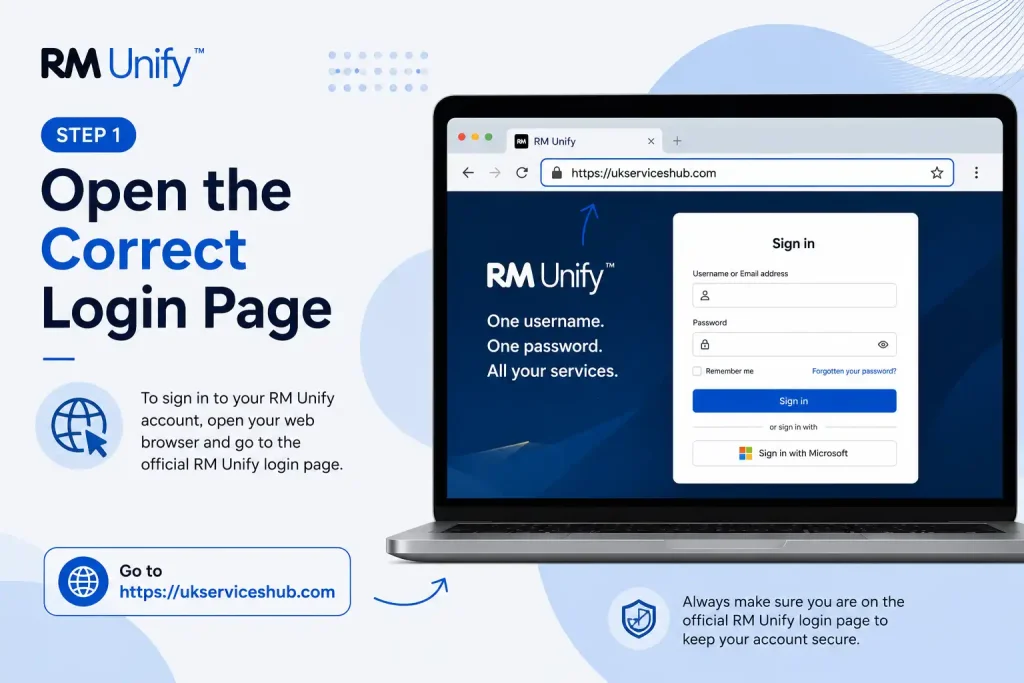
Begin by opening a current web browser such as Google Chrome, Microsoft Edge, Safari or Mozilla Firefox. You can visit the official RM website or follow the dedicated login link supplied by your school.
If your organisation uses a customised Launchpad address, use the school’s official link rather than searching for an alternative sign-in page.
Step 2 Enter Your School Username and Password
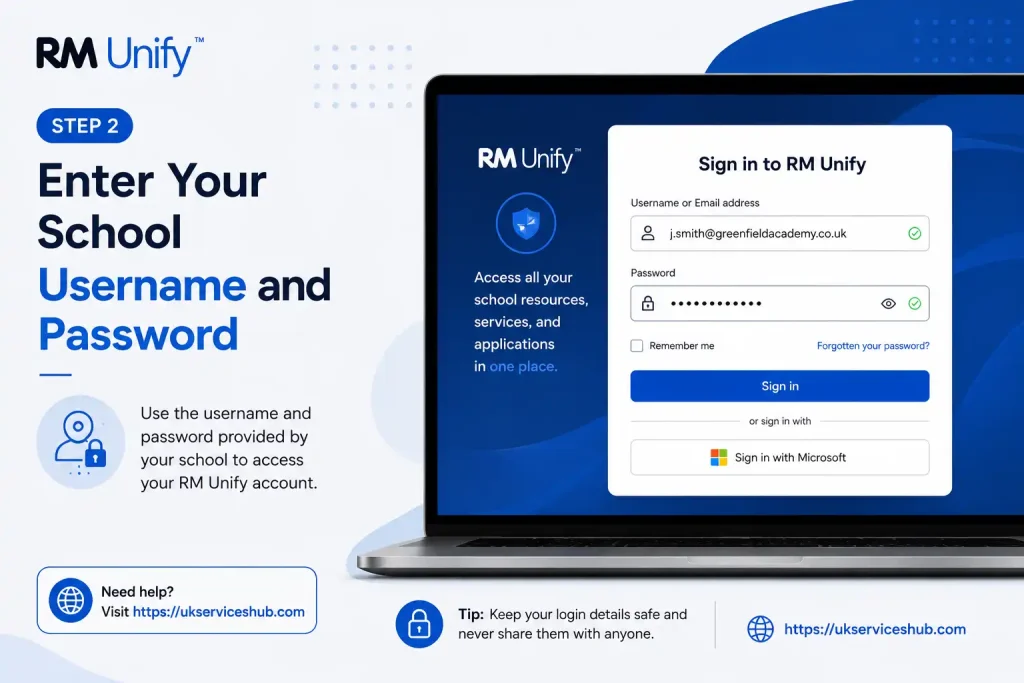
Type the login details issued to you by your school. Take a moment to check for typing errors before continuing, as passwords may be case-sensitive.
Where your school requires a username format such as username@schoolname, make sure you enter the full format exactly as instructed.
Step 3 Complete the Sign-In Process

Select the sign-in button and allow the authentication process to complete. If your details are correct and your account is authorised, you should be taken to your school’s RM environment and personalised Launchpad.
If access is unsuccessful, avoid repeatedly entering different passwords. Check your details first and use your school’s approved account recovery or support process if necessary.
Step 4 Choose an Application from Your Launchpad
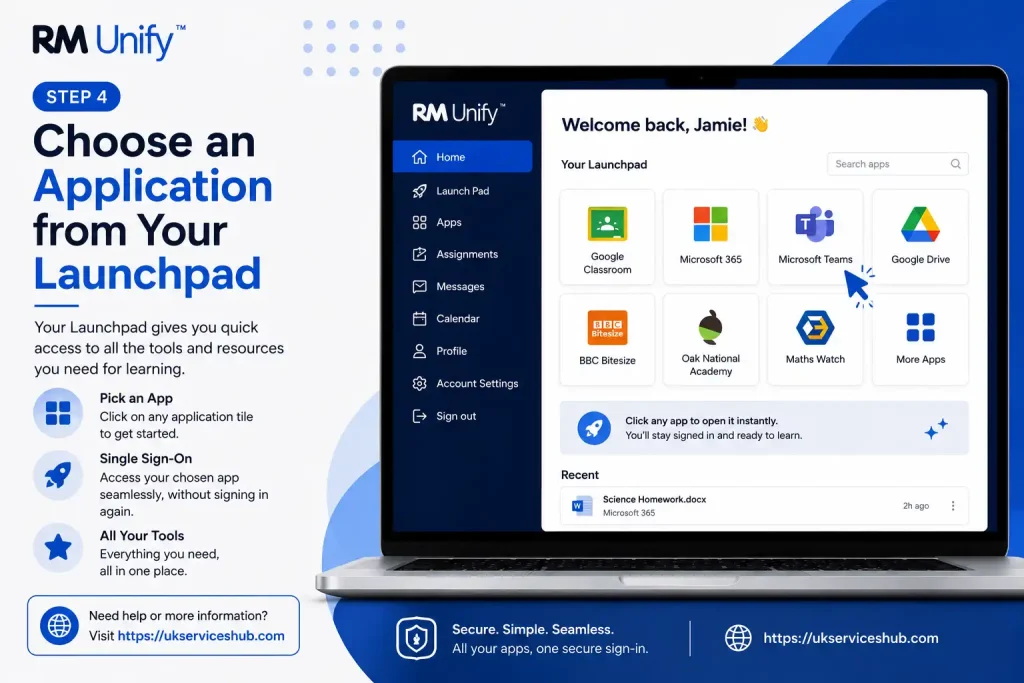
Once you are signed in, your Launchpad may display tiles for the online services assigned to your account. Select the application you want to use to open it.
When Single Sign-On is enabled for a particular service, you may not need to enter your credentials again after opening that application. However, the exact experience depends on your school’s configuration and the service being accessed.
Security tip: Keep your school password private and never share it with another student or unauthorised person. If you believe someone else knows your password, contact your school or IT administrator promptly so they can help protect your account.
Exploring the RM Unify Launchpad
After completing an RM Unify login, the Launchpad acts as your main starting point for accessing school-approved online services. Instead of visiting and signing in to each platform separately, users can find their available applications and shortcuts together in one organised area.
The Launchpad is personalised according to the way the school manages accounts. This means the apps displayed on your screen may be different from those available to another student, teacher or member of staff. Access can be assigned according to roles, groups and the requirements set by the educational organisation.
Launchpad Areas You May See
The exact layout and resources available will vary between schools. Depending on the organisation’s configuration, your account may provide access to different groups of applications and resources.
My Launchpad
My Launchpad is generally the personal area associated with an individual user’s account. It can include applications and shortcuts that have been made available specifically to you.
Where the school has enabled personalisation, you may also be able to make limited changes to the way your workspace is organised.
School Launchpad
The School Launchpad can contain applications and resources chosen by the school for its users. These may include services needed regularly for lessons, communication or other school activities.
Some of these resources may be managed centrally and cannot be removed by individual users. This helps ensure that important school services remain available to the people who need them.
Shared Trust or Organisation Resources
Schools that are part of a larger educational group, including a multi-academy trust, may provide resources that are shared across several establishments. The services available through these areas depend on how the wider organisation has arranged its digital access.
Keeping Your Launchpad Organised
A tidy Launchpad can make it easier to reach the tools you use most often. However, the changes you can make will depend on the permissions and settings applied to your account by the school administrator.
If your account has permission to manage applications, you may be able to explore an approved app library and add suitable shortcuts to your personal workspace.
Adding Available Applications
Find the application you want and select the option provided to add it to your Launchpad. Keep in mind that access to particular apps may be limited to certain users or groups.
Put Your Favourite Apps Where You Need Them
Some RM Launchpad setups allow users to move application tiles into a preferred order. Placing regularly used services near the front can save time during a busy school day.
For instance, a student who frequently uses Microsoft Teams alongside an online learning platform may choose to keep those applications in an easy-to-find position.
Removing Personal Shortcuts
Where this option is available, you may be able to remove shortcuts that you no longer need from your personal Launchpad. Centrally assigned school applications, however, may remain visible.
If a tile cannot be removed, it does not automatically mean something is wrong with your account. Your school may have set that resource as a required application.
Accessing School Applications Through RM Unify
A major benefit of a central school access platform is that it can bring several digital services into one familiar environment. The applications available through your account will depend on the tools your school uses, supports and connects to the platform.
Microsoft 365 and School Services
Schools that use Microsoft-based tools may make a range of Microsoft 365 services available through their digital environment. Depending on the school’s configuration, these could include:
Where Single Sign-On is configured, opening one of these services may recognise your existing school session and reduce the need to enter your details again. In some situations, however, a service may request another sign-in because authentication settings can differ between applications.
Google-Based Education Tools
Educational organisations using Google services may provide shortcuts to tools such as:
The services you can use will depend on the permissions attached to your school account. If an application opens with the wrong account, avoid creating or switching to a personal account without first checking with your teacher or school administrator.
Specialist Learning and Educational Platforms
Your RM Unify Launchpad may also include subject-specific, revision or other specialist learning tools selected by your school. The exact services will vary from one organisation to another.
Some connected applications can use Single Sign-On, allowing your existing Unify session to help confirm your identity automatically. Others may have separate access procedures depending on how the application has been configured.
Why Is an Application Asking Me to Sign In Again?
If an app unexpectedly asks for your login details, first check whether your RM session has expired. Signing out, closing your browser and starting a new session can sometimes fix a temporary authentication problem.
When the same issue continues, the cause could be related to the application’s connection, licence or account settings. For ongoing problems, contact your school’s IT support team and explain which application is affected.
RM Unify App: Using the Platform on a Mobile Device
People often search for an RM app when looking for a convenient way to access school services on a phone or tablet. Before downloading anything, check the guidance provided by your school or official RM resources, as access arrangements and device policies can vary.
In many situations, school services can be accessed through a modern mobile web browser. Your school may also recommend separate official apps for connected platforms, such as Microsoft Teams or Google Classroom.
When accessing school resources from a mobile device, remember to:
Important: Only install applications from trusted official app stores or links provided by your school. Be careful with unofficial software that uses the RM name or claims to provide access to school accounts.
Can You Create an RM Unify Account Yourself?
Searches for Unify sign up are common, but individual account creation is not usually the same as signing up for a typical public online service. Unify access is generally managed through an educational organisation.
In a school setting, user accounts and permissions are normally created or controlled by authorised administrators or the IT team. Students and staff are typically given their login information by the school rather than registering independently.
If you have not received your account details, contact the appropriate person at your school, such as:
Avoid trying to create a second or duplicate account with personal information unless your educational organisation has specifically told you to do so.
Key Points to Remember
Resetting Your RM Unify Password
If you cannot remember your RM password, the way you regain access will depend on your school’s account settings. Some schools allow users to reset their own passwords, while others manage password changes through teachers, administrators or the IT support team.
Try the Password Recovery Option First
Where self-service recovery has been enabled, begin from the official Unify sign-in page or the login link provided directly by your school.
The recovery process may vary, but you will usually need to:
Your school may use a registered recovery method or other verification checks to confirm your identity. For this reason, the exact password reset process can look different from one organisation to another.
When Self-Service Password Reset Is Not Available
Some schools do not allow users to reset passwords independently. If you cannot find or use a recovery option, contact the appropriate person responsible for your account.
| User | Who to Contact |
|---|---|
| Student | Speak to your teacher or contact the school network or IT administrator. |
| Teacher or staff member | Contact your organisation’s IT support desk or authorised administrator. |
| New user | Ask the school to confirm that your account has been created and activated. |
Avoid repeatedly guessing passwords when you are unsure of the correct one. Multiple unsuccessful attempts may create further access or security issues, depending on your school’s policies.
Password safety tip: Always use the official recovery method approved by your school. Never send your password through email, chat or messages, even when someone claims to be offering technical support.
RM Unify Login Problems: Why Can’t I Sign In?
An unsuccessful RM Unify login does not necessarily mean that your account has been removed or permanently locked. In many cases, access problems are caused by something straightforward, such as a mistyped password, an incorrect username format or credentials that need updating.
Before contacting support, work through a few basic checks.
Make Sure Your Username Is Correct
Enter your username exactly as it was issued by your school. Some accounts include a school-specific suffix or identifier, especially when users access RM Unify through a general login route.
Check for common errors such as:
If you have recently moved to a different school or changed roles, your old account details may no longer be the correct ones to use.
Double-Check Your Password
Passwords may be case-sensitive, so check that Caps Lock is not switched on and that your keyboard is using the expected layout.
If you recently changed your password, your browser might still be trying to use an older saved version. Try entering the current password manually before relying on autofill.
Use the Login Link Provided by Your School
Some organisations use a dedicated or customised route for accessing RM . If your school has given you a specific link, use that address rather than trying alternative pages.
For general information, you can start from the official RM website:
Because each school can manage its own settings, your school’s IT team or administrator remains the best source for account-specific login instructions.
Common RM Unify Issues and Possible Solutions
Problems with RM can sometimes be resolved with a few basic checks. The following table covers common situations that may affect your Launchpad or connected school applications.
| Problem | Possible Cause | What You Can Do |
|---|---|---|
| Sign-in failed or incorrect credentials message | The username or password may be incorrect | Check the spelling, password capitalisation and any required school identifier. |
| A tile opens to a blank page or keeps loading | Browser cache, cookies or browser settings may be interfering | Restart the browser, clear relevant browser data or test the service in a private browsing window. |
| An application asks you to sign in again | Your session may have expired, or the service may use separate authentication | Sign out, close browser windows, sign in again and reopen the application. |
| Access Denied message | Your account may not have permission to use the application | Ask your school administrator or IT team to check your access rights. |
| An expected application tile is missing | The service may not be assigned to your account or user group | Check with your school whether the application should be available to you. |
These steps can resolve some everyday problems, but issues involving user groups, licences or application settings may need to be investigated by the school’s IT administrator.
How to Deal with a Blank Page or Endless Loading
If an application tile opens to a blank screen or remains stuck loading, browser settings or stored website data may sometimes be responsible. Try the following options individually so you can identify whether one of them solves the problem.
Refresh the Page and Start Again
Begin with a normal refresh. If nothing changes, sign out of RM Unify and then sign back in before opening the application again.
Restart Your Web Browser
Close the browser completely instead of only closing the affected tab. Open it again and repeat the RM Unify login process to see whether the issue has cleared.
Clear Relevant Cache and Cookies
Saved browser data can occasionally interfere with website sessions. Clearing relevant cookies and cached data may help, although you may need to sign back into websites afterwards.
Test the Application in Private Browsing Mode
Opening the service in an Incognito or InPrivate window can help determine whether saved data, browser extensions or another local browser setting is affecting access.
Review Your Cookie and Privacy Settings
Some school services and connected applications need particular cookies or authentication features to work properly. If your browser is blocking a required feature, follow the guidance provided by your school’s IT team rather than reducing your security settings without advice.
If the problem continues, tell your support team exactly which application you selected and what happened afterwards. A screenshot of a non-sensitive error message may also make it easier for them to investigate the issue.
What Does an RM Unify “Access Denied” Message Mean?
Seeing Access Denied usually means that your current account has not been given permission to open a particular application or feature. It does not automatically mean there is a problem with your entire RM account.
Your access can depend on several factors, including:
For example, an application might be provided only to selected year groups. A student outside those groups could complete an Unify login successfully but still receive an access restriction when trying to open that specific service.
The best approach is to ask your school whether the application should be available to your account. Never attempt to bypass access restrictions or use another person’s login details to enter a service.
Why Does RM Unify Keep Asking Me to Sign In?
Single Sign-On is designed to make it easier to move between connected school services, but it does not mean every application will always use the same session or authentication process. Some services have their own security settings and may occasionally request your login details again.
If an application repeatedly asks you to sign in, try starting with a completely fresh session:
If the same sign-in request continues to appear, do not enter your school or personal details into unfamiliar login prompts. Contact your school’s IT support team instead and let them know which application is repeatedly asking for authentication.
Staying Secure When Using RM Unify on Shared Computers
Accessing school services from a shared or public computer requires extra attention. Login sessions, saved passwords and browser information can sometimes remain available after you finish, potentially allowing the next user to access your account.
To help protect your school account:
These precautions can be especially useful on computers in libraries, classrooms or other shared environments.
Tips for Easier Everyday Access
A few sensible habits can reduce the number of problems you encounter when using RM Unify and connected school applications.
Keep Your Browser Current
Using an up-to-date browser can help maintain compatibility with online school services and improve security. If you use a school-managed computer and cannot install updates yourself, ask the IT department for assistance rather than changing administrator-controlled settings.
Always Start from a Trusted Login Page
Saving your school’s approved RM Unify login page as a bookmark can make daily access quicker and reduce the chance of accidentally visiting the wrong website.
If your school has given you its own dedicated access link, use that link as your regular starting point.
Give IT Support the Right Information
When reporting a problem, a clear description can help the support team understand what has gone wrong more quickly. Include useful information such as:
The more clearly you describe the issue, the easier it may be for the support team to investigate the correct area.
RM Unify Quick Troubleshooting Checklist
Before contacting your school for support, take a moment to check the following:
If you have worked through these checks and still cannot access the service, the issue may need to be reviewed by your school’s administrator or IT support team. They can check account permissions, application access and other settings that individual users cannot change themselves.
Making RM Unify Easier and Safer to Use
Using a few sensible habits can help you access your school resources efficiently while also keeping your account secure.
Protect Your Account Information
Your RM login details may give you access to several school applications, which makes it particularly important to keep them private. Never give your password to friends, classmates or anyone who is not authorised to access your account.
If you believe somebody else may have used your account, contact your school or authorised IT support team as soon as possible and follow the security advice they provide.
Keep Your Launchpad Well Organised
Where personal Launchpad settings are available, organising your applications can make everyday access faster. Consider placing the tools you use for lessons or daily schoolwork in an easy-to-reach position, while keeping less frequently used services elsewhere on the page.
Bear in mind that some applications are published and managed centrally by the school. These administrator-controlled tiles may not be available for you to move, edit or remove.
Remember to Sign Out of Shared Devices
Always sign out when you have finished using a shared computer, particularly in classrooms, libraries or other public settings. Closing the browser completely after signing out can provide extra protection by reducing the chance that another person can access an active session.
Accessing RM Unify on Phones and Tablets
Mobile devices are now commonly used to check learning resources and access school services. Although many users search for an RM Unify app, the most suitable way to access Unify can depend on the systems, applications and device policies used by your school.
Your educational organisation may provide browser-based access, recommend official apps for connected services or manage school devices through its own IT arrangements.
Mobile Access: Good Practice
When using your phone or tablet to access school services, it is sensible to:
If your school recommends a particular RM app or another mobile access method, follow its instructions. Access arrangements can differ between educational organisations.
Can a Student Sign Up for RM Unify?
People searching for RM Unify sign up often wonder whether they can register and create an account independently. In most cases, access is managed by the educational organisation, and account details are provided to students and staff through the school or an authorised administrator.
If you have recently joined a school, your account may need to be created or activated before you can use the RM Launchpad.
How to Get Your RM Unify Account
If you have not received your login information, contact the appropriate member of staff at your school. This could include:
Avoid creating duplicate or unofficial accounts in an attempt to access school services. Your school can confirm whether an account has been set up for you and ensure that the correct permissions and applications are assigned.
Frequently Asked Questions About RM Unify
Conclusion
RM Unify gives students, teachers and school staff a central way to access the digital tools and services provided by their educational organisation. After completing an RM login, users can access their personalised Launchpad and open the applications assigned to their account without needing to manage separate sign-ins for every service.
If you experience problems with your password, missing applications or account access, start by checking your login details and using the correct school-approved access route. For issues that cannot be resolved through basic troubleshooting, your school’s IT support team or administrator can check account permissions and settings.
For the safest experience, keep your login details private, sign out when using shared devices and always use official or school-provided links. With the correct account and access permissions, Unify can make it easier to reach the school resources you need in one place.