PlayStation Portal Remote Player: Complete Setup & User Guide

PlayStation Portal gives PS5 owners a convenient way to enjoy compatible games without having to stay in front of the TV. With its 8-inch display and DualSense-style controls, the device is designed for Remote Play, allowing your PS5 to run the game while gameplay is streamed to the Portal over a network connection.
Setting up the PlayStation Portal is simple, but getting the best experience depends on configuring your PS5 correctly and using a stable Wi-Fi connection. In this guide, you’ll learn how to set up your Portal, enable Remote Play, connect to your PS5, improve connection performance, understand Cloud Streaming and troubleshoot common problems.
Whether you are considering a UK PS Portal, researching the white PS Portal, or simply want to understand how the device works, this guide covers the essential setup and usage information you need to get started.Visit our homepage for more information Click Here.
How Does PlayStation Portal Work?
PlayStation Portal is a dedicated remote player built around the PS5. It isn’t a replacement for the console and doesn’t operate as an independent PS5. Instead, it uses Remote Play to display compatible games running on your PS5.
The PS5 handles the actual game processing, while the Portal receives the video and sends your controls back to the console through the network. As a result, you can continue gaming somewhere else while the television connected to your PS5 is being used for something different.
Why Would You Choose a PS Portal?
The main appeal is convenience. You can move to another room and carry on playing without taking over the main television.
For instance, if someone else wants to watch TV, you can switch to the PS Portal and continue your game elsewhere in the house. Compatible titles can also make use of features such as haptic feedback and adaptive triggers, helping the handheld retain some of the feel of a DualSense controller.
Quick answer: PS Portal is designed for PS5 owners who want a dedicated handheld-style way to access compatible PS4 and PS5 games through Remote Play.
PS Portal Specifications and Key Features
Before buying or setting up the device, it helps to know what the PlayStation Portal actually offers.
| Feature | PlayStation Portal |
|---|---|
| Display | 8-inch LCD |
| Maximum resolution | Up to 1080p |
| Maximum frame rate | Up to 60fps |
| Primary connection | Wi-Fi |
| Console requirement | PS5 for Remote Play |
| Controller | Integrated DualSense-style controls |
| Haptic feedback | Available in compatible games |
| Adaptive triggers | Available in compatible games |
| Audio options | Built-in speakers, 3.5mm audio and supported PlayStation Link devices |
| Recommended network speed | 15Mbps or higher |
| Minimum broadband speed | 5Mbps |
PlayStation recommends a high-speed internet connection of at least 15Mbps for a better Remote Play experience, while 5Mbps is listed as the minimum broadband speed. These figures are useful benchmarks, but they don’t tell the whole story.
A connection can have plenty of download speed and still produce an inconsistent experience. Wi-Fi signal strength, interference, network traffic, router placement and the connection used by your PS5 can all influence gameplay responsiveness.
Does PS Portal Have Its Own Games?
The phrase PS games portal can be confusing because PlayStation Portal isn’t a traditional standalone gaming console with its own separate game library.
With standard Remote Play, the device connects to your PS5 and lets you access compatible games available through that console. Your PS5 remains responsible for running the game.
There is, however, another option worth knowing about: Cloud Streaming. Eligible PlayStation Plus Premium members can stream selected PS5 games through the cloud, including supported titles from the Game Catalogue, Classics Catalogue and certain digital PS5 games from their own library.
These two features work differently:
| Remote Play | Cloud Streaming |
|---|---|
| Connects to your PS5 | Connects to supported cloud-streaming games |
| Requires a PS5 console | A PS5 doesn’t need to be active for supported cloud streaming |
| Accesses compatible games through your console | Streams eligible games from the cloud |
| Doesn’t require PS Plus for Remote Play itself | Requires PlayStation Plus Premium |
| Performance depends heavily on your network | Cloud-streaming quality also depends on your internet connection |
Important: Cloud Streaming and Remote Play shouldn’t be treated as the same feature. Your available options depend on the service, game and PlayStation account you’re using.
What Do You Need Before Setting Up PS Portal?
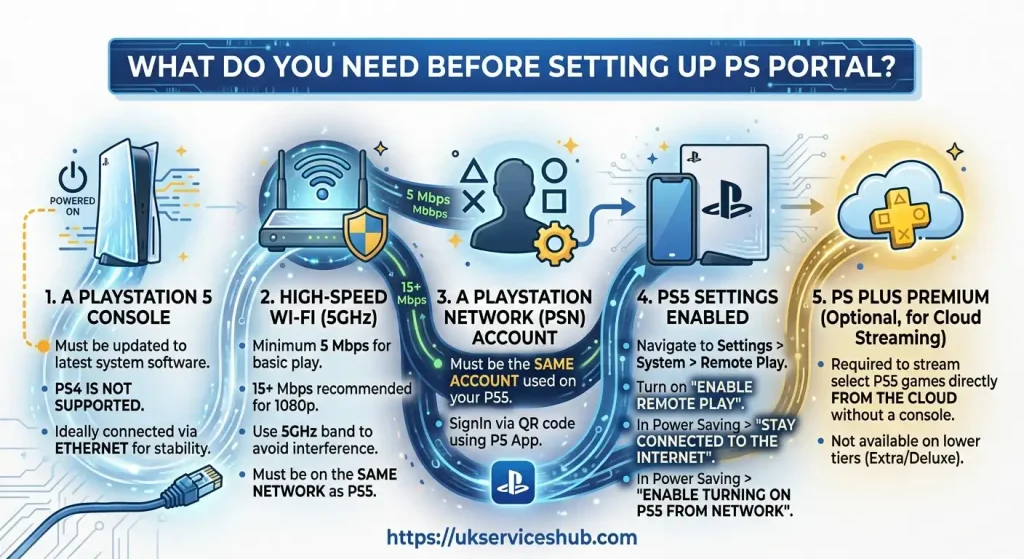
Getting the basics ready before you start can prevent many common connection problems. If you’re setting up a new PS Portal, check these requirements first.
1. PS5 Console
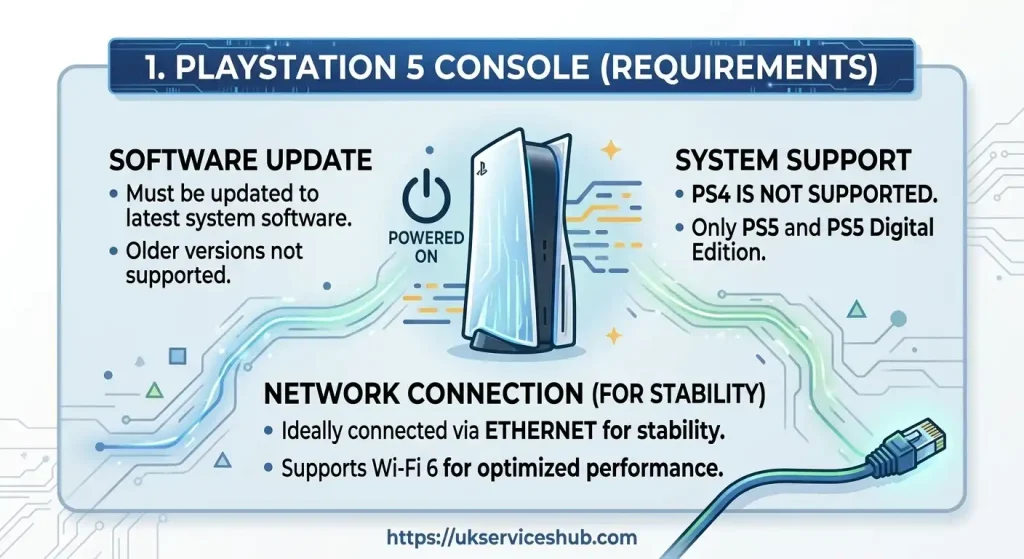
A PS5 is required for the standard PlayStation Portal Remote Play experience. Before connecting the handheld, make sure the console is running current system software.
Your PS5 also needs to be connected to broadband internet and configured correctly for Remote Play.
2. PlayStation Account

You’ll need a PlayStation account to connect the Portal and access your PS5 through Remote Play.
Use the appropriate account credentials when pairing the device with your console so that the connection can be established correctly.
3. Strong and Reliable Wi-Fi

Network quality is one of the biggest factors affecting the PS Portal experience.
PlayStation lists 5Mbps as the minimum broadband speed and recommends 15Mbps or faster for a better experience. However, raw speed isn’t the only consideration.
You may experience interruptions or increased latency if:
Expert tip: A stable connection is generally more useful than simply having a high advertised download speed.
4. Keep the Software Updated

Before troubleshooting connectivity or starting a long gaming session, check that both your PS5 and PlayStation Portal are running the latest available software.
PlayStation regularly provides system updates for its hardware. Keeping the software current can help ensure that you’re using the latest supported features and improvements.
Before You Start: PS Portal Checklist
Use this quick check before connecting your device:
Once these basics are in place, you’re in a much better position to set up Remote Play and get the most from your UK PS Portal.
Getting Your PS5 Ready for PlayStation Portal
Before you connect a PlayStation Portal, make sure your PS5 is prepared for Remote Play. A few settings on the console can make the difference between a smooth first connection and unnecessary troubleshooting.
The good news is that most of the preparation takes only a few minutes.
Enable Remote Play on Your PS5
Your first task is to allow the PS5 to accept Remote Play connections.
From the PS5 home screen, open:
Settings → System → Remote Play
Then turn on Enable Remote Play.
Once this option is active, your console can communicate with supported Remote Play devices, including the PS Portal.
If your Portal cannot locate the PS5 later: check this setting again before changing your network configuration. Remote Play needs to be enabled on the console for the connection to work.
Keep Your PS5 Available in Rest Mode
If you want to start Remote Play while your PS5 is in Rest Mode, the console needs permission to maintain its internet connection and respond to a network wake-up request.
Go to:
Settings → System → Power Saving → Features Available in Rest Mode
Turn on both of these options:
This is especially useful for people who don’t want to leave their console fully switched on whenever they’re away from the TV.
Rest Mode allows the PS5 to remain available for supported network functions. By contrast, a completely powered-off console cannot provide the same remote-access behaviour.
Give Your PS5 the Best Possible Network Connection
A reliable network is central to the PlayStation Portal experience. Even if your internet package is fast, an unstable connection can affect responsiveness and streaming quality.
Where practical, connect your PS5 directly to your router with an Ethernet cable. Using a wired connection for the console can reduce the amount of wireless traffic between the PS5 and router.
The Portal itself connects over Wi-Fi, but giving the PS5 a stable connection can still help create a more dependable Remote Play environment.
PS5 and Portal Preparation Checklist
Before you try to connect the devices, check that:
A quick check now can save you from troubleshooting the connection later.
PlayStation Portal First-Time Setup
With your PS5 prepared, you can move on to the PS Portal.
Switch On Your PS Portal
Press and hold the power button on the top of the device until the screen turns on.
The Portal’s initial setup will take you through the basic configuration process.
Follow the instructions displayed on the screen rather than skipping setup steps, particularly if this is your first time using the device.
Connect the Portal to Wi-Fi
Choose your available Wi-Fi network and enter its password when requested.
For Remote Play, try to use a network with a strong and consistent signal. The quality of the Wi-Fi connection can affect how responsive games feel on the handheld.
PS Portal can also be used away from your home network when a suitable broadband Wi-Fi connection is available. However, public or shared networks can behave differently from a private home connection.
Public Wi-Fi note: PlayStation states that certain newer Portal system software can support public networks that require additional authentication or validation. In these situations, you may need a smartphone or tablet to complete the extra connection steps.
For the smoothest initial setup, connect your Portal to your home Wi-Fi first.
Update the PS Portal System Software
Your Portal may ask you to install a system software update during the setup process.
If an update is available, it’s sensible to install it before continuing. Keeping the device on current software helps ensure you’re using the latest available functionality and improvements.
PlayStation also recommends keeping Portal system software updated as new firmware becomes available.
Connect PlayStation Portal to Your PS5
After completing the initial setup, sign in using your PlayStation account.
The Portal and PS5 need to be associated with the appropriate account for Remote Play to work correctly. Your console must also be configured as described above.
Once everything is ready, follow this general connection sequence:
The controls are integrated into the Portal and are designed around the familiar DualSense experience. Compatible games can therefore make use of supported features such as haptic feedback and adaptive triggers.
If the PS5 Doesn’t Appear
Don’t immediately assume that the Portal is faulty.
Start with the basics:
These checks address some of the most common setup issues before you move on to more advanced troubleshooting.
Is PlayStation Plus Required for PS Portal?
You don’t need PlayStation Plus simply to use standard Remote Play on PS Portal.
PlayStation Remote Play itself doesn’t require a PlayStation Plus membership. However, this doesn’t remove any separate subscription requirement attached to a particular game.
For example, if a game requires PlayStation Plus for its online multiplayer features, you’ll still need the relevant membership to use those multiplayer functions.
Cloud Streaming follows a different model.
PS Portal Remote Play vs Cloud Streaming
| Feature | Remote Play | Cloud Streaming |
|---|---|---|
| PlayStation Plus required? | No, for Remote Play itself | Yes, PlayStation Plus Premium |
| PS5 required? | Yes | Not for supported cloud streaming |
| Game source | Your PS5 | Supported cloud titles |
| Internet connection | Required | Required |
| Child accounts | Supported according to applicable account features | Cloud Streaming isn’t available for child accounts |
So, if you’re buying a UK PS Portal mainly to play games installed on your PS5, you don’t need to purchase PlayStation Plus just for Remote Play.
Key Takeaway
Setting up a PS Portal is largely about preparing the PS5 correctly before connecting the handheld. Enable Remote Play, configure Rest Mode if you want remote wake-up, keep both devices updated and use a reliable network connection.
Once those foundations are in place, connecting your Portal to the PS5 should be much more straightforward.
How to Get a Smoother PS Portal Experience
Once your PlayStation Portal is paired with the PS5, network performance becomes the main thing to watch. The handheld is easy to operate, but the quality of your connection can directly affect image clarity, responsiveness and whether the session stays connected.
Don’t focus only on your broadband speed. The complete route between the PS5, router and Portal matters. A fast internet package won’t necessarily solve problems caused by a weak Wi-Fi signal, interference or an unstable connection from the PS5 to the router.
Understanding the Connection Behind PS Portal
It helps to know what happens when you start a Remote Play session.
The basic path looks like this:
PS5 → Router/Home Network → PS Portal
Your PS5 is responsible for running the game. The Portal receives the gameplay stream and sends your controller inputs back to the console.
That is why a normal Remote Play session doesn’t involve installing PS5 games directly onto the Portal. The games remain on the PS5 and are accessed through the remote connection.
This also explains the importance of Rest Mode. If the console is completely switched off, it can’t provide the same remote connection as a PS5 that has been configured to remain available through Rest Mode.
A Simple Way to Think About It
PS5 = runs the game
Network = carries the data
PS Portal = displays the game and receives your controls
Once you understand this relationship, many PS Portal connection issues become easier to diagnose.
Remote Play or Cloud Streaming: What’s the Difference?
Modern PS Portal functionality includes more than one way to access games, so it’s worth separating Remote Play from Cloud Streaming.
Remote Play Uses Your PS5
Remote Play connects directly to your own PS5.
Compatible games available through the console can be accessed through the Portal, provided the console and network are correctly configured.
Your PS5 remains the machine doing the game processing.
Cloud Streaming Doesn’t Depend on Your Active PS5
Cloud Streaming works differently. Instead of receiving a game stream from your own console, an eligible title is streamed from PlayStation’s cloud infrastructure.
PlayStation states that eligible PlayStation Plus Premium members can stream selected PS5 games from the Game Catalogue, Classics Catalogue and certain digital PS5 games from their own library.
That makes Cloud Streaming particularly useful when you want to play a supported title without relying on a direct Remote Play session from your console.
| Remote Play | Cloud Streaming | |
|---|---|---|
| Game source | Your PS5 | PlayStation cloud servers |
| PS5 needed | Yes | Not for supported cloud sessions |
| PlayStation Plus | Not required for Remote Play itself | Premium required |
| Uses your console | Yes | No |
| Internet connection | Important | Essential |
| Available games | Compatible games accessible through your PS5 | Eligible cloud-streaming titles |
So, when you’re researching PS games portal options, don’t assume every game is being delivered in the same way. Remote Play and Cloud Streaming have different requirements.
Can You Use PS Portal Away From Home?
Yes. PlayStation Portal isn’t limited to the room where your PS5 is located.
If you’re away from home and have access to a suitable Wi-Fi connection, you can use Remote Play to connect to your prepared PS5. This is one of the reasons a UK PS Portal can be useful for people who don’t always want to play in front of their main television.
Before leaving home, make sure the following are ready:
PlayStation lists 5Mbps as the minimum broadband speed and recommends 15Mbps or higher for a better Remote Play experience. Meeting the recommended speed doesn’t guarantee perfect performance, though, because latency, Wi-Fi interference and network congestion can also affect the session.
What About Public Wi-Fi?
Using your Portal on public Wi-Fi can work, but the experience may be less consistent than it is on a good home network.
For example, a hotel, university or café network may involve:
Newer PS Portal system software supports certain public Wi-Fi networks that require additional authentication. PlayStation notes that you may need a smartphone or tablet to complete those extra sign-in steps.
Travel Tip
If you’re planning to rely on your PS Portal while travelling, test Remote Play at home first. Make sure your PS5 can be reached remotely and that your Portal connects reliably before you depend on a hotel or public network.
A little preparation is much easier than discovering a connection problem when you’re already away from home.
How to Improve PS Portal Performance
Once your PlayStation Portal is working, a reliable network should be your main priority. You don’t necessarily need the fastest broadband package available; consistency, low interference and a dependable connection are often more important.
The Portal, router and PS5 work together during Remote Play. If one part of that chain is struggling, you may notice poorer image quality, delayed controls or unexpected disconnections.
Strengthen Your PS Portal Wi-Fi Connection
The position of your Portal can have a noticeable effect on Remote Play.
Moving too far away from the router can weaken the wireless signal, while thick walls, floors and nearby electronic equipment may create additional interference.
If you start noticing any of the following, try moving closer to your router:
A stronger signal gives the Portal a better chance of maintaining a stable stream.
Should You Connect Your PS5 with Ethernet?
If your router is near the PS5, using an Ethernet cable is a practical improvement to test.
Your Portal will still communicate over Wi-Fi, but the PS5 will have a direct wired route to the router instead of relying on its own wireless connection.
A useful home configuration looks like this:
PS5 → Ethernet → Router ← Wi-Fi ← PS Portal
This setup removes one wireless link from the equation and can make Remote Play more consistent, particularly when the PS5’s existing Wi-Fi connection is weak.
Why Is My PS Portal Lagging?
Lag doesn’t automatically mean there’s a problem with the PS Portal hardware. Remote Play relies on several network components, so a problem anywhere along the route can affect responsiveness.
Weak Wi-Fi Coverage
A Portal operating at the edge of your router’s coverage may struggle to maintain a consistent connection. Moving closer to the router is one of the simplest tests.
Too Much Network Traffic
Downloads, high-resolution video streaming, cloud backups and other bandwidth-heavy activities can compete with Remote Play.
If several people are using the same connection at once, temporarily reducing that traffic can help identify whether congestion is responsible.
Router and Portal Distance
The further the Portal is from the router, the greater the chance of a weaker wireless signal. Physical obstacles can make this worse.
PS5 Network Quality
Your Portal isn’t the only device that needs a reliable connection. A PS5 using unstable Wi-Fi may also contribute to an inconsistent Remote Play session.
If possible, test the console with Ethernet.
Playing Away From Home
When you’re connecting to your PS5 from another location, the connection on both ends matters. Your home network needs to communicate reliably with the network being used by the Portal.
That’s why a good experience at home doesn’t always guarantee identical performance when travelling.
PS Portal Controls: What Can You Use?
The PlayStation Portal is designed to feel familiar to PS5 players rather than functioning like a basic streaming screen.
Its integrated controls are based around the DualSense controller layout, including analogue sticks, shoulder buttons, triggers and the usual PlayStation controls.
Compatible games can also support features such as:
The exact behaviour depends on the game. Not every title will necessarily use every available feature.
For someone already accustomed to a DualSense controller, this familiar layout means there is little need to learn a completely new control system.
Audio Options on PlayStation Portal
You have several ways to listen while using your PS Portal.
The device includes built-in speakers and a 3.5mm headphone jack. It also supports compatible PlayStation Link wireless audio products.
Headphones can be particularly useful when you’re playing late at night or when other people are using the room.
If you’re experiencing unusual audio behaviour with a connected headset or wireless audio product, try using the Portal without the additional device. This can help establish whether the issue is related to the Portal itself or the audio connection.
Is the White PS Portal Different?
The white PS Portal is the standard colour that many buyers recognise. From a functionality point of view, colour does not determine how Remote Play works.
If you’re specifically shopping for a white PS Portal, check the current official PlayStation listing or an authorised UK retailer because availability, pricing and promotions can change.
It’s also worth checking the exact model and included accessories before placing an order, particularly if you’re comparing different listings.
What Does EE PS Portal Refer To?
If you’ve searched for EE PS Portal, you’re generally looking at PlayStation Portal availability or a sales offer associated with EE rather than a different type of Portal hardware.
When comparing an EE PS Portal listing with another retailer, look beyond the advertised headline price.
Check the following before buying:
For the technical specifications, compare the retailer’s listing against the official PlayStation product information.
PS Portal Troubleshooting: Common Problems
When something goes wrong, it’s useful to work through the PS5, Portal and network separately. Most everyday problems can be narrowed down with a few straightforward checks.
PS Portal Can’t Find the PS5
If your console isn’t appearing, work through these steps:
If the PS5 has been completely powered off, the Portal may not be able to wake and connect to it remotely.
Why Does the PS Portal Picture Look Blurry?
A soft or inconsistent picture can indicate that the network isn’t maintaining the stream properly.
Try these checks:
Don’t assume that a blurry image means the Portal’s display is defective. Network conditions are one of the first things worth checking.
How Can You Reduce Input Delay?
Input lag is easier to notice in games that require quick reactions.
Start by checking your connection rather than immediately changing game settings.
A practical troubleshooting order is:
Portal Wi-Fi → Router → PS5 connection → Network activity → Software updates
If the PS5 currently uses Wi-Fi, testing an Ethernet connection can help determine whether the console’s wireless connection is contributing to the delay.
PS Portal Keeps Losing Connection
Frequent disconnections usually point towards an unstable connection somewhere in the setup.
First, restart the Portal and router. Then try using the Portal closer to the router.
If the connection becomes stable when you’re nearby, Wi-Fi coverage or interference may be contributing to the problem.
It’s also worth checking whether another device is carrying out a large download, streaming high-resolution video or otherwise consuming significant bandwidth.
What If the Touchscreen or Controls Stop Responding?
A temporary software problem can sometimes make the Portal appear unresponsive.
Try restarting the device. If a normal shutdown isn’t possible, holding the power button for an extended period can force a restart.
Once the Portal starts again, check whether a system software update is available before testing Remote Play.
PS Portal Troubleshooting Checklist
Before assuming that your device needs repair, run through this short list:
This basic process can identify many routine connection issues without making unnecessary changes to your setup.
Is PS Portal a Good Choice?
Whether PlayStation Portal is worth buying depends on what you expect from a handheld gaming device.
It can be a good fit if you:
It may not be the right option if you’re looking for a completely independent handheld that runs games locally, don’t own a PS5, or regularly deal with unreliable internet connections.
The PS games portal idea is therefore better understood as part of the wider PlayStation ecosystem. PS Portal extends access to your gaming setup rather than replacing the PS5 itself.
Suggested Visual for This Section
Image concept: A player using PlayStation Portal comfortably on a sofa while another person uses the main television.
Suggested ALT text: PlayStation Portal Remote Player connected to PS5 over Wi-Fi
SEO filename: playstation-portal-remote-play-uk.jpg
Recommended placement: Immediately after the explanation of how Remote Play works.
Suggested Kadence Layout
Use a two-column feature block:
Frequently Asked Questions About PlayStation Portal
Conclusion
The PlayStation Portal is a convenient way to enjoy your PS5 games away from the TV, combining Remote Play with familiar DualSense-style controls and a dedicated 8-inch display. Setting up the PS Portal is straightforward, but a reliable Wi-Fi connection, correctly configured PS5 and updated software are essential for a smooth experience.
Whether you are considering a UK PS Portal, looking for information about the white PS Portal, or comparing different buying options, understanding how Remote Play and Cloud Streaming work can help you decide if the device is right for you. The Portal is not a replacement for a PS5 for standard Remote Play, but it can be a useful companion for flexible, TV-free gaming.
For the best experience, keep your PS5 connected to a stable network, enable the required Remote Play and Rest Mode settings, and use a strong Wi-Fi connection for your Portal. With the right setup, the PlayStation Portal can make accessing your PS5 games more convenient at home or while travelling.